Reports and documents
Shipper TMS prints transport documents from the Transport Order page.
Use these documents for the warehouse, the driver, the carrier, and the consignee.
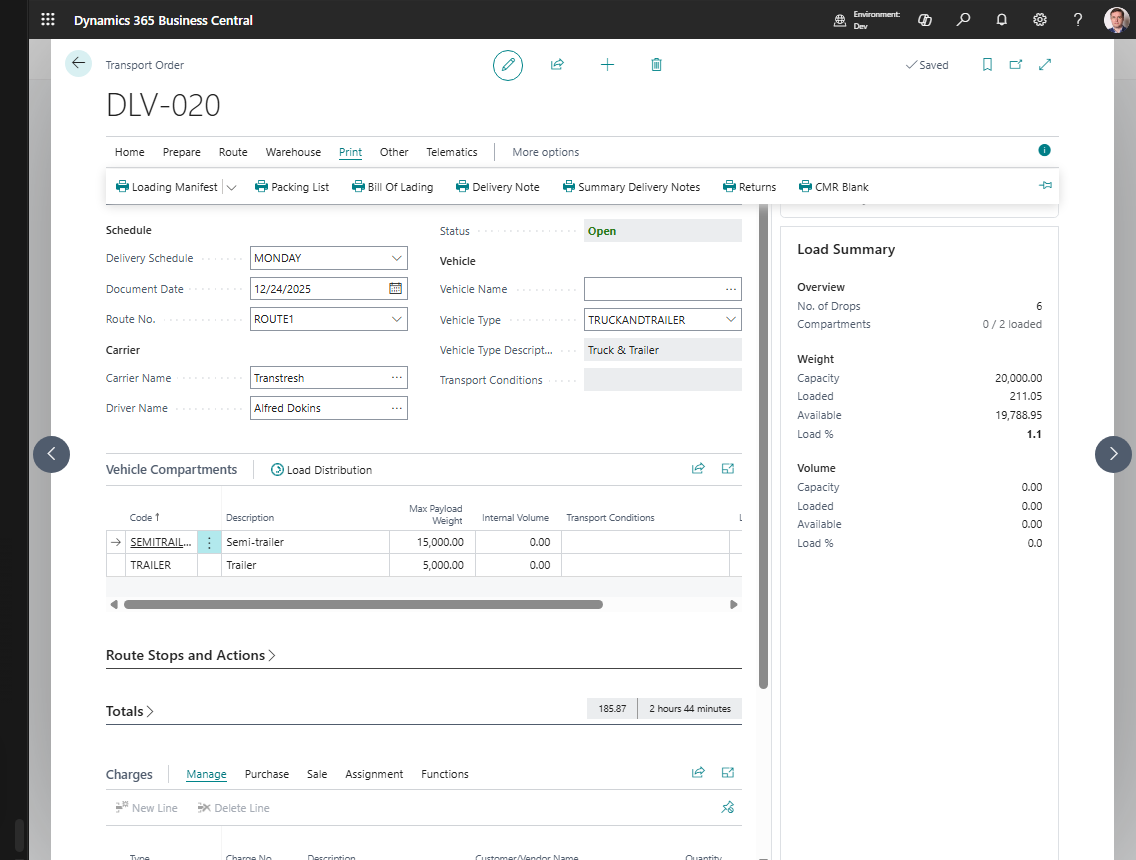
How to work with print actions
Use report actions from the Transport Order after the trip has enough data to print meaningful documents.
- Open the Transport Order.
- Review carrier, vehicle, driver, route stops, and request lines.
- Choose the document you need:
- Loading Manifest for warehouse loading,
- Packing List for cargo details by drop,
- Bill Of Lading for shipment handover,
- Delivery Note for delivery confirmation,
- Summary Delivery Notes for the driver route summary,
- Returns for returned goods,
- CMR Blank for pre-printed CMR forms.
- Preview the output if your Business Central environment offers preview.
- Print or send the document according to your company process.
- If the wrong layout prints, ask an administrator to review Report Selection - Transportation Management System or run Set default reports in TMS Setup.
Expected result:
- The document uses the current Transport Order data: route stops, carrier, vehicle, driver, and request lines.
- The printed layout follows the active Business Central report selection for Transportation Management System reports.
Where to print them
- Open a Transport Order.
- Use the print actions on the page.
- The actual output follows your current Report Selection setup.
Available documents
| Document | Use it for |
|---|---|
| Loading Manifest | Driver and warehouse loading instructions |
| Email Loading Manifest | Send the loading manifest to the carrier vendor from the Transport Order |
| Packing List | Per-drop cargo summary |
| Bill Of Lading | Shipment handover and route document |
| Delivery Note | Goods delivered to the consignee |
| Summary Delivery Notes | Multi-stop driver summary |
| Returns | Returned goods process |
| CMR Blank | Pre-printed CMR form completion |
Good to know
- Default report mappings can be reset from Shipper TMS Setup with Set default reports.
- CMR No. can be generated from the number series configured in setup.
- If your company uses custom layouts, the printed result depends on the active report selection.
- The email action uses the Business Central report selection and vendor email behavior. Review the carrier/vendor contact setup before relying on it in production.
Troubleshooting
| Problem | What to check |
|---|---|
| The wrong layout prints | Review report selection or run Set default reports in Shipper TMS Setup. |
| CMR number is missing | Fill CMR Nos. in TMS Setup before assigning or printing CMR numbers. |
| A printed document misses route or load details | Review Transport Order route stops, request lines, carrier, vehicle, and driver before printing. |
| A user cannot print | Check Business Central report permissions and Shipper TMS user permissions. |