TMS Setup
Use Shipper TMS Setup to define the default behavior of Shipper TMS.
This page controls:
- number series,
- planning controls,
- automatic Transport Request creation,
- default transport values,
- carrier selection,
- freight-charge behavior,
- map providers,
- proof of delivery,
- telematics access.
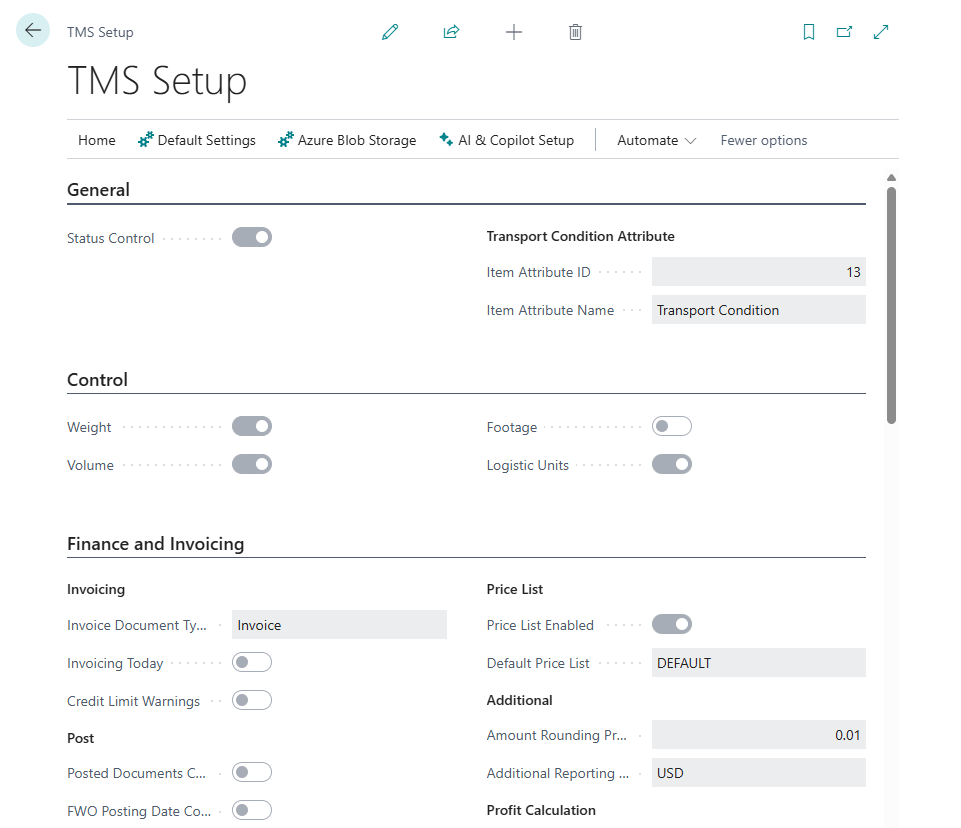
How to open the page
Use one of these options:
- search for Shipper TMS Setup,
- open it from Manual Setup,
- open the assisted setup flow if your company uses guided setup.
Minimum setup checklist
Complete these items before planners start working:
- Fill Transport Request Nos.
- Fill Transport Order Nos.
- Fill MAP Location Nos.
- If you print CMRs, fill CMR Nos.
- Set Default Mode of Transport.
- Turn on the capacity controls your company uses:
- Weight
- Volume
- Footage
- Logistic Units
- Set Truck Load Time Slot Profile if you use Truck Load Management or Driver Load Management.
- Select the Map Provider and enter the required key.
- Choose Check TMS Settings.
Expected result:
- Transport Requests and Transport Orders can be numbered.
- Planners can release requests and create orders without missing setup errors.
- Route, distance, carrier selection, warehouse, PoD, and telematics features are enabled only when their required setup exists.
Setup by process
| If your company uses | Set up these areas |
|---|---|
| Basic request and order planning | Number series, default mode of transport, source document behavior |
| Capacity control | Weight, volume, footage, logistic unit controls, item data, vehicle capacity |
| Own fleet planning | Vehicles, drivers, truck-load time-slot profile, depots, driver requirement |
| External carrier selection | Carriers, carrier rates, carrier selection enabled, carrier rate type mapping |
| Warehouse execution | Business Central warehouse setup, source document locations, Transport Order release process |
| Route and distance | Map provider, API key, map locations, distance matrix |
| Truck-aware routing | Azure Maps, vehicle routing profiles, vehicle unit types |
| Proof of delivery | Transport execution status profile and status setup |
| Telematics | Telematics provider setup, carrier setup code, vehicle and driver mapping |
Settings most teams use
| Area | What to review |
|---|---|
| Number Series | Transport Request, Transport Order, Map Location, and CMR numbering |
| Control | Capacity dimensions enforced during planning |
| Transport Requests | Automatic request creation from released sales, purchase, or transfer documents |
| Transport Orders | Default transport mode, charge assignment type, and driver requirement before truck-load release |
| Transport Condition | Item attributes used to separate incompatible cargo |
| Carrier Selection | Carrier comparison, rate-type mapping, and automatic charge-line creation |
| Proof of Delivery | PoD enablement and the transport execution status profile |
| Map Provider Settings | Google Maps or Azure Maps credentials |
Setup decisions that change daily work
Some setup fields change what planners can do, when they are blocked, or which follow-up documents are created. Decide these before go-live and review them with the planning and finance teams.
| Setting | What it changes for users | Typical choice | Change it when |
|---|---|---|---|
| Carrier Selection Enabled | Shows Carrier Selection on Open Transport Orders | On when carrier rates are maintained | Turn it off if carrier choice is always manual |
| Auto Create Charge Line | Creates transport charge lines after a carrier is selected | On for rate-driven freight cost | Turn it off if users enter charges manually |
| Carrier Rate Types Mapping | Controls which item charge is used for each selected rate component | Required when automatic charge lines are used | Add or change Carrier Rate Type Mapping records when finance changes item charge rules |
| Check Planning Date on Release | Blocks source document release when the required planning date is missing | On for controlled planning | Turn it off only for testing or exception-heavy processes |
| Create Transport Requests Before Transport Orders | Controls whether Create Transport Order on source documents can create or prepare Transport Requests first | Off for planner-controlled request release; on for one-click order creation | Turn it on when users should not manage Transport Requests separately. Missing requests are created in Released status, and existing Open requests are released and included. When off, only existing Released requests are used and Open requests must be released manually |
| Require Driver Before Release | Blocks truck-load release when no driver is assigned | On for own-fleet execution | Turn it off for external-carrier operations where driver data is not maintained |
| Build Estimated Logistic Units | Builds estimated logistic unit information for planning and capacity review | On when unit estimates support planning | Turn it off if logistic units are maintained only later in the warehouse process |
| Split Delivery Note by Transport Condition | Groups Delivery Note By Drop output by transportation condition | On when separated cargo needs separated paperwork | Turn it off when one delivery note per drop is enough |
Admin field reference
| Field group | What it controls |
|---|---|
| Number Series | Numbering for Transport Requests, Transport Orders, Map Locations, CMRs, and related documents |
| Default Values | Default mode of transport, charge assignment type, planning defaults, and other values copied into new documents |
| Auto-Creation Rules | Whether released sales, purchase, or transfer documents automatically create Transport Requests |
| Carrier Selection | Carrier comparison availability, automatic charge-line creation, and carrier rate type mapping |
| Charges | Default charge assignment behavior and posting-related charge requirements |
| Map Provider | Selected provider for geocoding, route display, and distance calculation |
| Azure Maps | Subscription key, geo scope, and truck-aware routing support |
| Capacity Controls | Weight, volume, footage, logistic unit, compartment, and transportation-condition controls |
| Route Optimization | Route, route sequence, load sequence, and scheduled time optimization behavior |
| Proof of Delivery / Execution | Execution status profile and PoD-related status behavior |
| Reports | Default report selections for transport documents |
| Logistic Units | Estimation and capacity behavior driven by unit types |
| Upgrade Log | Setup and data checks after extension updates |
Recommended first-run sequence
- Set the number series.
- Select the capacity controls you will enforce.
- Decide whether requests are created automatically when sales, purchase, or transfer documents are released.
- Fill defaults such as Default Mode of Transport, Truck Load Time Slot Profile, and Default Charge Assignment Type.
- Configure Map Providers.
- If you use Azure truck-aware routing, configure Vehicle Routing Profiles.
- If you use carrier comparison, configure Carrier Rates and Carrier Rate Type Mapping.
- If you use PoD or driver updates, configure Statuses and Status Profiles.
- If you use telematics, configure Telematics.
- Choose Check TMS Settings.
Carrier selection settings
Use this section only when your company maintains carrier rates.
| Setting | Use |
|---|---|
| Carrier Selection Enabled | Shows Carrier Selection on Open Transport Orders |
| Auto Create Charge Line | Creates transport charge lines when a carrier is selected |
| Carrier Rate Types Mapping | Opens/counts the mappings from carrier rate types to Business Central item charges |
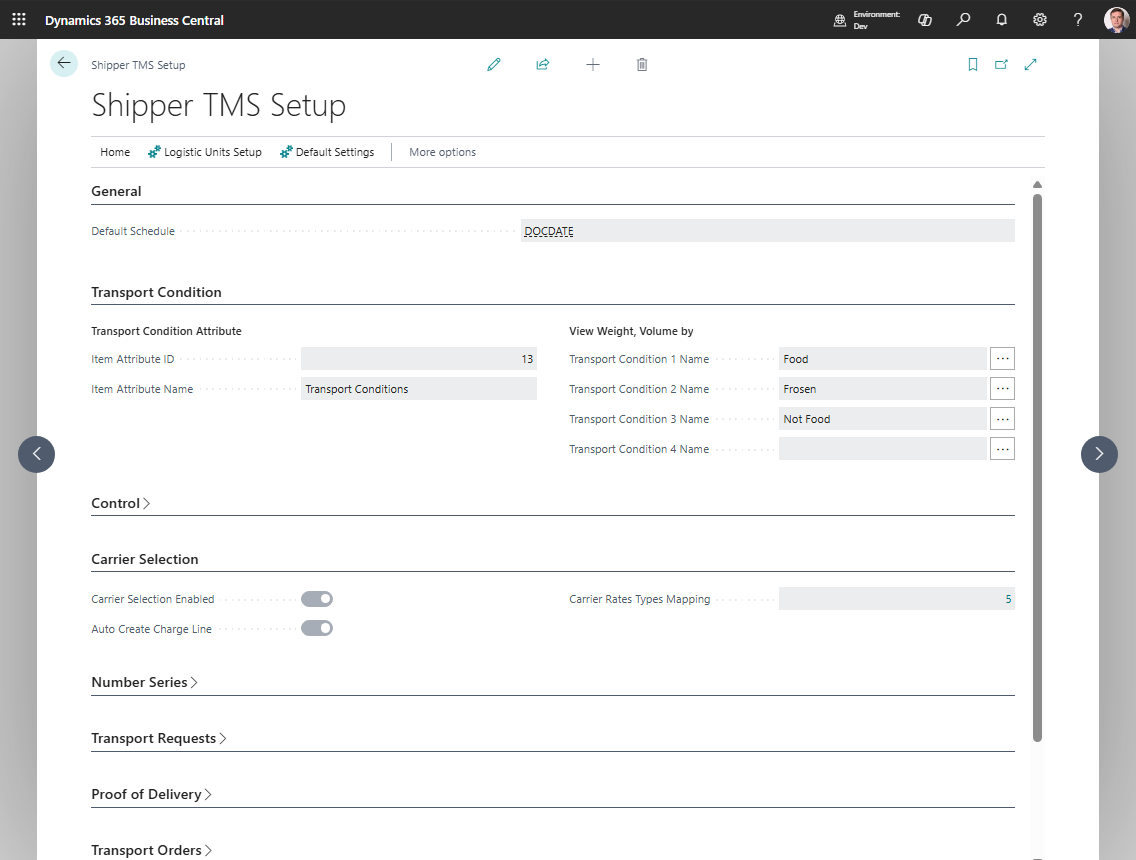
If carrier selection is enabled but rate-type mapping is missing, Check TMS Settings should be treated as a blocker before go-live.
The old Auto Create Item Charge field is no longer used. The item charge now comes from Carrier Rate Type Mapping.
Check TMS Settings output
Choose Check TMS Settings after changing setup or before go-live.
The check reviews:
- number series for Transport Requests, Transport Orders, and MAP Locations;
- default mode of transport for Transport Orders;
- map provider readiness;
- carrier selection readiness and carrier rate type mappings;
- transport request auto-creation and planning-date release checks.
Expected result:
- TMS setup check passed means the required setup is present.
- TMS setup check found blocking issues means planners can hit setup errors. Fix the listed blocking items before the process is handed to users.

Useful actions
| Action | Use it for |
|---|---|
| Check TMS Settings | Validate whether the minimum required setup is complete |
| Set default reports | Restore the standard report selection setup |
| Telematics Setups | Open provider connections for Geotab, Samsara, or Webfleet |
Verify setup
- Search for Transport Requests and confirm the page opens.
- Search for Transport Orders and confirm the page opens.
- Create a test Map Location and geocode it.
- Create a test Transport Request.
- Create a test Transport Order.
- Run Get Transport Time & Distance on the request or order.
Expected result:
- No setup validation error appears.
- Test documents receive numbers from the configured number series.
- Distance and duration update when the route and map provider are valid.
- The planning page that your team uses shows the test request or order in the expected period.
Troubleshooting
| Problem | What to check |
|---|---|
| A request or order number is not assigned | Fill Transport Request Nos. or Transport Order Nos. and confirm the number series allows automatic numbering. |
| Users cannot open TMS pages | Assign Shipper TMS permission sets and verify license access. |
| Carrier Selection is unavailable | Turn on Carrier Selection Enabled and keep the Transport Order Open. |
| Carrier Selection creates no charge lines | Turn on Auto Create Charge Line, configure Carrier Rate Type Mapping, and use a vendor-based carrier. |
| Truck Load Management has no slots | Fill Truck Load Time Slot Profile and review vehicle scheduling setup. |
| Distance does not calculate | Check map provider, API key, mode of transport, map locations, and coordinates. |
| Posting is blocked by charges | Review default charge assignment type, transport charge source links, and unposted source charge lines. |