Transport Request Planning
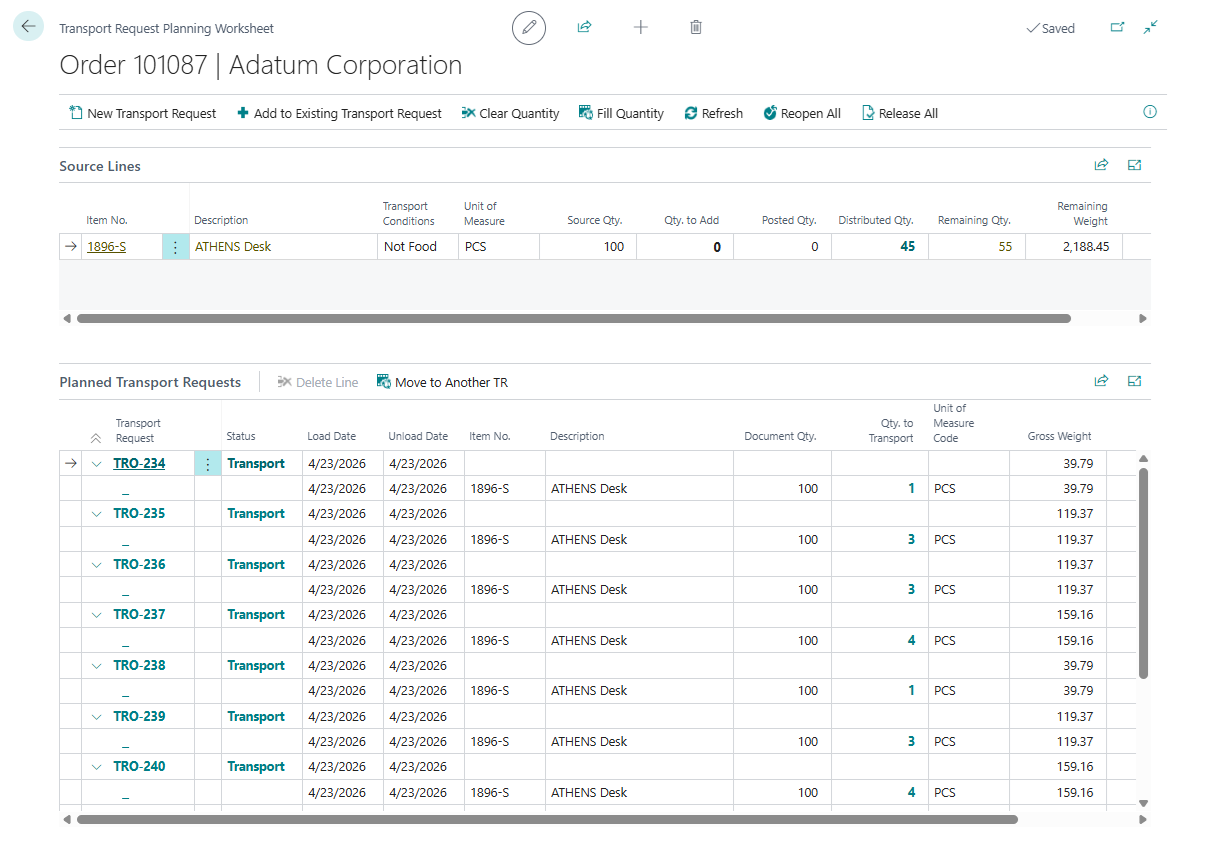
Use Transport Request Planning when one source document must be split across one or more Transport Requests.
Use it when you need to:
- create requests for only part of a document,
- split one order into several deliveries,
- add remaining quantities to an existing Open request,
- move quantities between Open requests,
- release or reopen all related requests from one page.
Before you start
- The source document must be released when it is an unposted sales, purchase, or transfer document.
- Source lines must still have remaining quantity that can be assigned to transport.
- Use this worksheet before creating a Transport Order if one source document must become several requests.
- Existing requests must be Open before you add or move quantities to them.
How the page is organized
| Area | Purpose |
|---|---|
| Source Lines | Shows source quantities, posted quantities, distributed quantities, remaining quantities, and Qty. to Add |
| Planned Transport Requests | Shows the Transport Requests and request lines already created for this source document |
| Transport Request Summary | Shows totals for the selected request |
Create a new request from selected quantities
- Open the source document.
- Choose Transport Request Planning.
- In Source Lines, enter Qty. to Add on the lines you want to plan.
- Choose New Transport Request.
- Review the created request number or request count.
- Release the request when it is ready for planning.
Expected result:
- Shipper TMS creates one or more Transport Requests for the selected quantities.
- Source line balances update so users can see distributed and remaining quantities.
- Released requests become available in Transport Order planning.

Example: split one order into two deliveries
A Sales Order has 100 units. The customer wants 60 units delivered Monday and 40 units delivered Thursday.
- Open the Sales Order and choose Transport Request Planning.
- Enter
60in Qty. to Add. - Choose New Transport Request.
- Open the created request and set the Monday load and unload dates.
- Return to Transport Request Planning.
- Enter
40in Qty. to Add. - Choose New Transport Request again.
- Set the Thursday dates on the second request.
Expected result:
- the source line shows the full quantity as distributed;
- the document has two linked Transport Requests;
- each request can be released and planned into a different Transport Order.
Already assigned quantities
The worksheet shows what has already been distributed from each source line. Use these quantities before entering a new Qty. to Add value.
| Quantity | Meaning |
|---|---|
| Source Quantity | Quantity on the source document line |
| Distributed Quantity | Quantity already assigned to Transport Requests |
| Remaining Quantity | Quantity still available for planning |
| Qty. to Add | Quantity you want to add in the current action |
If the full source-line quantity is already distributed, Qty. to Add stays zero and should not be used for that line unless an Open request line is changed or removed.
Add quantities to an existing request
Use this when an Open Transport Request already exists for the same source document.
- Enter Qty. to Add on the source lines.
- Choose Add to Existing Transport Request.
- Select the Open Transport Request.
- Confirm the added lines in Planned Transport Requests.
Move quantity to another request
- In Planned Transport Requests, select a request line.
- Choose Move to Another TR.
- Select the target Open Transport Request.
- Enter the quantity to move.
- Refresh the worksheet and verify the balances.
Useful actions
| Action | Use it for |
|---|---|
| Fill Quantity | Set Qty. to Add to the remaining quantity on all source lines |
| Clear Quantity | Set Qty. to Add to zero on all source lines |
| New Transport Request | Create request(s) from selected source lines |
| Add to Existing Transport Request | Add selected quantities to an Open request |
| Refresh | Recalculate source and distribution balances |
| Release All | Release all Open requests for this source document |
| Reopen All | Reopen Released requests that are not assigned to a Transport Order |
Rules
- Qty. to Add cannot be negative.
- Qty. to Add cannot exceed Remaining Qty..
- You can move quantities only to Open requests.
- Released requests must be reopened before you change their lines.
- Requests already assigned to a Transport Order cannot be reopened from this worksheet.
Troubleshooting
| Problem | What to check |
|---|---|
| Qty. to Add is not editable | Check Remaining Qty., source-line eligibility, and whether the quantity is already assigned to a request with status Assigned. |
| No eligible lines are shown | Confirm the source document is supported, released when required, and still has item quantities that are not fully assigned. |
| Existing request cannot be selected | Only Open requests can receive added or moved quantities. |
| Release All does not release a request | The request must have required load and unload date/time values. |
| Reopen All skips a request | Requests already assigned to a Transport Order cannot be reopened from the worksheet. |
| Balances do not look current | Choose Refresh to recalculate source and distribution quantities. |