Truck Load Management
Customer-stop route sketching for an already created trip is handled by Customer Stop Pre-Planner. Truck Load Management remains the vehicle-first tool for capacity, time slot, driver, and truck-slot checks.
Use Truck Load Management when your planner wants to work from the truck side first.
The main planning object is the truck slot:
- vehicle,
- planning date,
- time slot.
This page answers the question: What should this truck carry in this time window?
When to use it
Use Truck Load Management when you want to:
- review all available trucks for a period,
- plan by resource instead of by request pool,
- see empty, full, overloaded, or conflicting truck slots,
- add requests directly to a selected truck,
- release a finished load.
Do not start here if you only need to choose an external carrier. Use Carrier Selection on a Transport Order for that flow.
Which planning tool should I use?
| Planner question | Best tool |
|---|---|
| What should this truck carry in this date and time slot? | Truck Load Management |
| Which released requests should be grouped first? | Transport Request Load Planning |
| Which driver can take this load? | Driver Load Management |
| How does the plan look across the day or week? | Visual Scheduler |
Before you start
- Configure Truck Load Time Slot Profile in TMS Setup.
- Create vehicles and assign carrier, vehicle unit type, depot, capacity, and default driver when used.
- Create drivers if driver assignment is required before release.
- Transport Requests must be Released before they can appear as candidates.
- Capacity controls, compartments, and transportation conditions should be configured before go-live if your process enforces them.
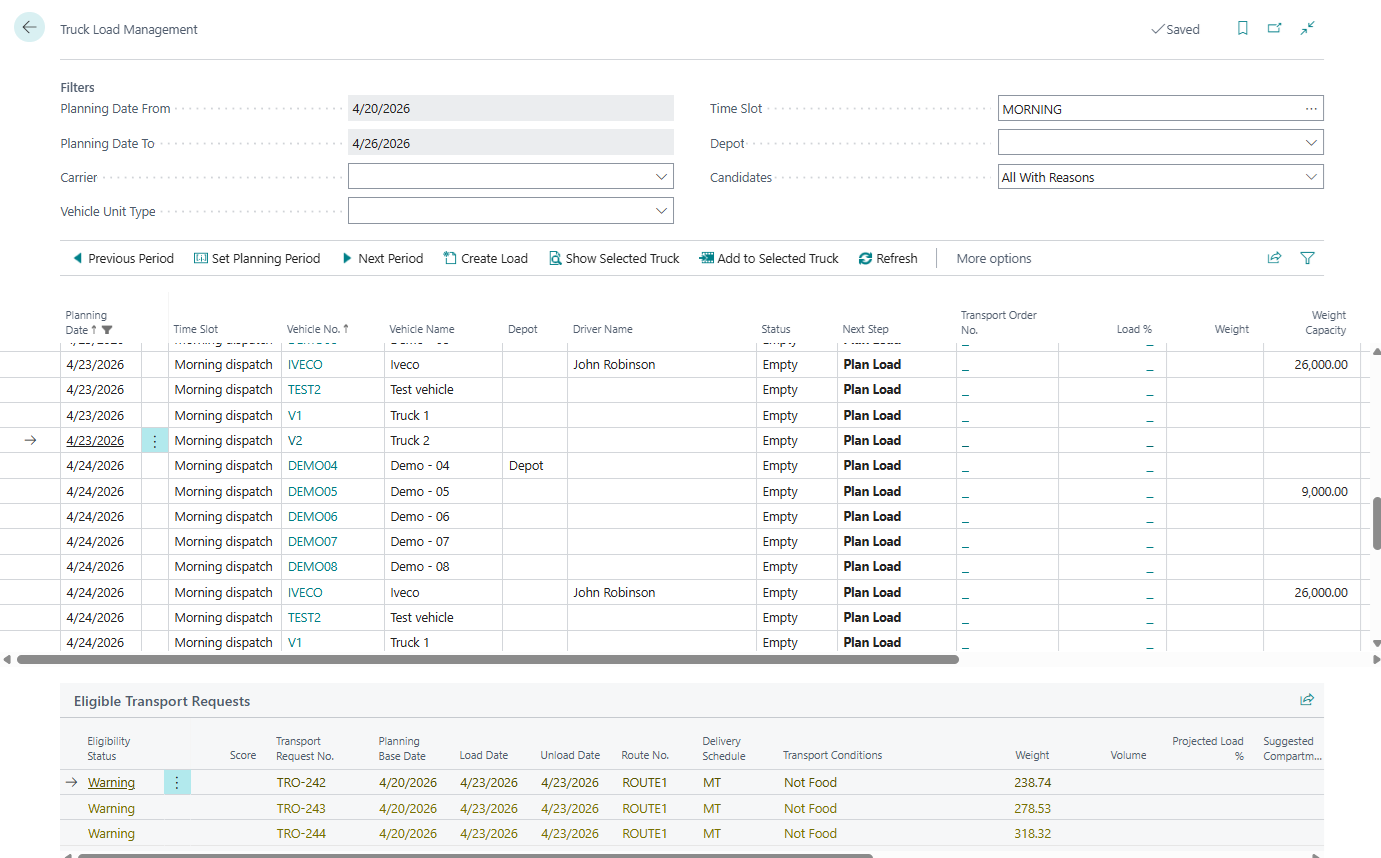
Main sections
| Section | Purpose |
|---|---|
| Filters | Period, carrier, vehicle unit type, time slot, depot, candidate mode |
| Truck Slots | One row per vehicle/date/time-slot combination |
| Eligible Transport Requests | Candidate requests for the currently selected slot |
How to work in this window
- Set the period with Previous Period, Set Planning Period, or Next Period.
- Use Carrier, Vehicle Unit Type, Time Slot, and Depot filters as needed.
- Select a truck slot in the upper list.
- Review Status, Next Step, Load %, capacity columns, and conflicts.
- If the slot has no Transport Order, choose Create Load. Shipper TMS creates an Open Transport Order for the selected truck slot.
- In Eligible Transport Requests, select one or more requests.
- Choose Add to Selected Truck. The requests are added to the slot’s Transport Order if they pass eligibility checks.
- Open the load with Next Step, Load %, or Open Transport Order.
- When the load is ready, choose Release Load. The linked Transport Order changes from Open to Released when validation succeeds.
Customer stop pre-planning from a truck slot
Choose Customer Stop Pre-Plan when you want to sketch the delivery sequence at customer-stop level before adding requests to the selected truck.
- If the slot already has a Transport Order, Customer Stop Pre-Planner opens the existing trip.
- If the slot is empty, it shows released, unassigned Transport Requests grouped by consignee and unload point.
- Use Sequence, Move Up, Move Down, Renumber Sequence, or Auto-sequence by Map Coordinates to prepare the stop order.
- Select stops and choose Assign Selected Stops to Truck Slot to assign all underlying Transport Requests through the existing Truck Load Management candidate checks.
The assignment is all-or-nothing at customer-stop level. A selected stop is not split by transport condition from this worksheet.
After a load is created, Customer Stop Pre-Planner can also move selected customer stops to another truck slot. The move uses the same target-slot selection and eligibility checks as Truck Load Management, but keeps each customer stop together as one planning unit.
Candidate modes
Use the Candidates filter to control how strict the lower list should be.
| Mode | Use it when |
|---|---|
| Best Candidates | You want the best planning suggestions first |
| Eligible Only | You want only requests that can be assigned |
| All With Reasons | You want to see why some requests are warnings or blocked |
| Blocked Only | You are troubleshooting planning blocks |
Candidate and slot indicators
| Indicator | Meaning |
|---|---|
| Best Candidate | The request is a strong match for the selected truck slot |
| Eligible | The request can be added, but it may not be the best fit |
| Warning | The request can require planner review before assignment |
| Blocked | The request cannot be assigned until the shown reason is fixed |
| Load % | Capacity usage for the linked load |
| Conflict Count | Driver, vehicle, slot, or rule conflicts detected for the slot |
| Compartment | Capacity or transport-condition subdivision on the vehicle |
Slot status legend
| Slot status | What it means | Planner action |
|---|---|---|
| Empty | The vehicle/date/time slot has no linked load. | Create a load or leave the slot available. |
| Planned | A Transport Order exists for the slot. | Add requests, review route and capacity, then release when ready. |
| Partially Loaded | The load has requests but still has capacity. | Add more compatible requests if the route still makes sense. |
| Full | Capacity is considered full for the selected controls. | Review and release, or move work if the load is not operationally correct. |
| Released | The linked Transport Order is released. | Warehouse/execution can proceed; reopen only if planning changes are needed. |
| In Progress | Execution has started. | Do not use the slot for planning changes unless the process is rolled back. |
| Unavailable | The vehicle or slot is not available for planning. | Choose another slot or fix vehicle scheduling setup. |
| Conflict | A scheduling or assignment conflict exists. | Open conflict details or the linked order and resolve before release. |
| Overloaded | The load exceeds a configured capacity control. | Remove requests, move work, or use a larger compatible vehicle. |

How to read candidate reasons
Candidate reasons are written for the planner. Use them to decide the next action:
| Reason type | What it means | What to do |
|---|---|---|
| Eligible | The request can be added to the selected truck slot. | Add the request if it fits the route and capacity plan. |
| Warning | The request can be possible, but one planning detail needs review. | Review the reason, capacity, time slot, route, and compartment before adding it. |
| Blocked | The request cannot be added in the current state. | Fix the shown blocker or choose another truck slot. |
| Conflict | The selected truck, driver, or time slot has overlapping work or another scheduling conflict. | Open the load or conflict details and move the work, vehicle, driver, or time slot. |

Example: truck-first planning
- Open Truck Load Management for tomorrow’s planning period.
- Filter to the carrier, depot, and time slot.
- Select an empty truck slot.
- Choose Create Load.
- Switch candidates to Best Candidates.
- Add compatible released requests until capacity and time look correct.
- Review conflicts and compartments.
- Choose Release Load when the load is ready for execution.
Release checks
Before Release Load succeeds, Shipper TMS checks the selected truck slot.
Common blockers include:
- no linked Transport Order,
- Transport Order is not Open,
- no Transport Requests on the load,
- driver is required in setup but not assigned,
- slot has conflicts,
- load is overloaded,
- compartment or transportation-condition rules are not valid.
Fix the blocker, refresh the page, and release again.
Troubleshooting
| Problem | What to check |
|---|---|
| No truck slots are shown | Check planning period, time-slot profile, vehicle setup, carrier filter, vehicle unit type, depot filter, and whether the vehicle is blocked for scheduling. |
| Candidate requests are missing | Confirm requests are Released, inside the planning period, and compatible with the selected slot filters. |
| A candidate is blocked | Use All With Reasons or Blocked Only to see the reason. |
| Add to Selected Truck fails | The target slot and Transport Order must be selectable and open; capacity, compartment, and transportation-condition rules must allow the move. |
| Release Load fails | Resolve missing order, non-open order, missing requests, missing driver, conflict, overload, or compartment/condition blockers. |
| The linked order looks wrong | Use Repair Truck Load Links to check and repair Transport Order links to truck planning slots for the current period. |
Move or remove work
- Open the selected truck load from Next Step, Load %, or Open Transport Order.
- Select the Transport Request row.
- Choose Remove from Truck to return it to the planning pool.
- Choose Move to Another Truck to move it to another truck slot.
- Choose Move to Another Driver if the load should stay planned but change driver assignment.
Main actions
| Action | Use it for |
|---|---|
| Create Load | Create an Open Transport Order for the current truck slot |
| Show Selected Truck | Refresh the candidate list for the current slot |
| Add to Selected Truck | Add selected requests to the selected slot |
| Open Transport Order | Open the linked Transport Order |
| Release Load | Release the current load after validation |
| Repair Truck Load Links | Check and repair Transport Order links to truck planning slots for the current period |