Transport Order
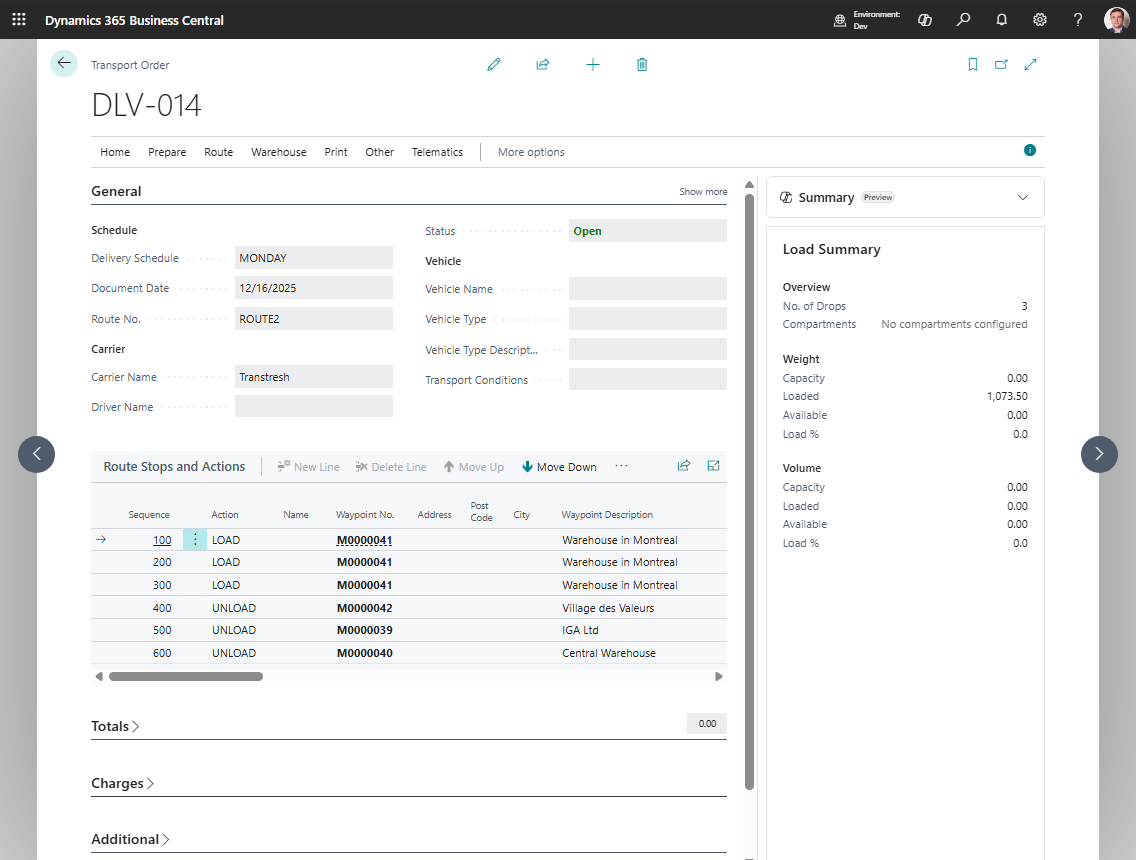
A Transport Order is the execution document in Shipper TMS.
Use it to define the actual trip:
- which carrier executes it,
- which vehicle and driver are assigned,
- which stops are visited,
- which requests are on the load,
- which charges and documents belong to the trip.
Use Customer Stop Planning on an Open Transport Order when the dispatcher needs to review or adjust the route at customer-stop level. See Customer Stop Pre-Planner.
Before you start
Make sure that:
- TMS Setup has Transport Order Nos. and Default Mode of Transport filled.
- At least one Transport Request is Released if you are creating an order from demand.
- The order is Open while you change requests, route stops, carrier, vehicle, driver, distance, or optimization.
- Map provider setup is complete if you calculate distance, duration, or show the route.
- Carrier rates and rate-type mapping are configured before you use Carrier Selection.
- Warehouse locations require shipment or receipt documents before you use Warehouse Documents.
What lives on a Transport Order
A Transport Order can contain:
- one or more Transport Requests,
- route stops,
- vehicle and carrier assignments,
- capacity totals,
- warehouse document links,
- transport charges and charge assignments,
- telematics publication links,
- execution entries.
Statuses
| Status | Meaning |
|---|---|
| Open | The order can be edited and planned |
| Released | The order is ready for execution and warehouse document creation |
| In Progress | The trip is underway and can be posted |
Allowed status movement is:
Open -> Released -> In Progress
Released -> Open
In Progress -> Released
Posting is not a live status change. When you choose Post, Shipper TMS creates a Posted Transport Order and removes the live order from the active Transport Orders list.
Use Reopen when you must change planning data. Use Return to Released when execution started but the trip must be paused or corrected before posting.
How requests get into the order
Use one of these methods:
- Add Transport Requests from the Transport Order,
- Assign to Transport Order from the Transport Request,
- Transport Request Load Planning,
- Truck Load Management,
- Driver Load Management,
- Visual Scheduler,
- Create Transport Order from a supported source document.
When a request is added, Shipper TMS creates the related load and unload route lines automatically.
When you use Create Transport Order on a source document or a selected document list, Shipper TMS creates one Transport Order for the action run and includes all eligible Transport Requests in that order. If Create Transport Requests Before Transport Orders is enabled in TMS Setup, missing Transport Requests are created first in Released status, and existing Open requests are released and included. If the setting is disabled, only existing Released requests are used, and Open requests must be released manually.
This source-document action is a fast creation flow. It does not split or filter requests by route, transportation conditions, or vehicle capabilities. Create a Transport Order manually when those factors must drive which Transport Requests are selected.
How to work in this window
- Keep the order Open while you are planning.
- Fill or review Carrier, Vehicle, and Driver.
- Choose Add Transport Requests when you need to add released requests. The selected requests are added to the order and route lines are rebuilt.
- Review Route Stops and Actions.
- Use Get Transport Time & Distance to calculate distance and duration. Distance and duration are stored on the order when the map provider returns a route.
- Use Show Route to review the route visually.
- Use route optimization only after the stop list is complete enough to optimize. Optimization can reorder stops, so review the result before releasing.
- Use Carrier Selection if you need to compare carrier rates. The selected carrier is written back to the order. If automatic charge creation is enabled, charge lines can also be created.
- Review Transport Charges if the order carries cost or re-billing lines.
- Release the order when planning is complete. The status changes to Released. Most planning fields become protected.
- Create Warehouse Documents if the warehouse process requires them. Shipper TMS creates or opens warehouse shipments or receipts for the linked source lines.
- Print the required documents.
- Publish to telematics if your carrier uses a connected provider.
- Move the order to In Progress when execution starts. The order becomes ready for execution updates and posting.
- Post the order when the trip and financial prerequisites are complete. The live order is removed and a Posted Transport Order is created.
If you need to change route, resources, requests, or charges after release, reopen the order first.
Key actions
| Action | Typical status | Result |
|---|---|---|
| Add Transport Requests | Open | Adds released unassigned requests and rebuilds route stops |
| Carrier Selection | Open | Compares carrier costs and can apply the selected carrier |
| Create Warehouse Documents | Released | Creates or opens warehouse shipment or receipt documents |
| In Progress | Released | Starts execution and prepares the order for posting |
| Post | In Progress | Moves the order to posted history |
Route and timing
| Action | Use it for |
|---|---|
| Get Transport Time & Distance | Calculate route distance and duration |
| Show Route | Display the route on a map |
| Route Optimization | Optimize stop order |
| Route Sequence Optimization | Reorder stops by Route Sequence |
| Loads Optimization | Reorder load sequence |
| Scheduled Time Optimization | Rebuild timing across the route |
Execution and resources
| Action | Use it for |
|---|---|
| Carrier Selection | Compare carriers and apply the selected carrier |
| Create Warehouse Documents | Build warehouse shipment or receipt documents from a Released order |
| Release | Move the order from Open to Released |
| Reopen | Move the order from Released back to Open |
| In Progress | Start execution |
| Return to Released | Move the order back from In Progress |
| Post | Post the trip and move it to history |
Telematics
If the carrier is connected to a telematics setup, the order can show actions such as:
- Publish to Telematics,
- Cancel Telematics Dispatch,
- Refresh from Telematics,
- Sync Execution Facts,
- Show Location,
- Telematics Dispatches,
- Telematics Links.
Documents
Available print actions include:
- Loading Manifest,
- Email Loading Manifest,
- Packing List,
- Bill Of Lading,
- Delivery Note,
- Summary Delivery Notes,
- Returns,
- CMR Blank.
Posting requirements
Before you post the order, Shipper TMS checks these hard requirements:
- The Transport Order status is In Progress.
- The order contains transport lines.
- Every transport charge line still has an active source link when a source link is required.
- Source-linked sales, purchase, or transfer charge lines are no longer active live source lines that block posting.
If posting fails, open Charges first. Resolve inactive source links or complete the source-document posting flow, then try posting again.
Operationally, you should also review route stops, execution facts, proof-of-delivery attachments, carrier charges, warehouse documents, and printed documents before posting. These items may be required by your company process even when they are not the exact system blocker shown in the posting check.

After posting, use Posted Transport Orders for read-only history.
Troubleshooting
| Problem | What to check |
|---|---|
| You cannot edit the order | The order must be Open for planning changes. Choose Reopen if the order is Released. |
| Add Transport Requests is unavailable | The order must be Open. |
| Released requests do not appear | Confirm the requests are Released and not already assigned to another Transport Order. |
| Create Transport Order is unavailable on a source document | If Create Transport Requests Before Transport Orders is off, the source document needs at least one existing Released unassigned Transport Request. If the setting is on, check that the source document still has eligible transportable quantities or an existing Open or Released unassigned Transport Request. |
| Distance or duration does not update | The order must be Open, the mode of transport must be filled, map provider setup must be complete, and route points must have usable map locations. |
| Carrier Selection is unavailable | Carrier Selection must be enabled in TMS Setup and the order must be Open. |
| Auto charge lines are not created | Check Auto Create Charge Line, carrier source vendor, and Carrier Rate Type Mapping. |
| Create Warehouse Documents is unavailable | The order must be Released. |
| No warehouse document is created | The linked location must require warehouse shipment or receipt, and the linked source lines must still have outstanding warehouse quantity. |
| Post does not complete | The order must be In Progress, must have transport lines, and charge lines must be linked or posted correctly. |
| A vehicle or driver cannot be assigned | Check whether the carrier, driver, vendor, or vehicle is blocked and whether fleet setup allows the assignment. |
Good to know
- Carrier Selection is available only when the order is Open and carrier selection is enabled.
- Warehouse document creation is available only from Released orders.
- Posting is available from In Progress orders.
- Truck Load Management can enforce driver, conflict, capacity, and compartment checks before releasing a truck load.