Transport Charges
Use Transport Charges on a Transport Order to manage freight cost and re-billing.
Transport charges can support:
- carrier purchase charges,
- sales re-billing charges,
- self-billing purchase invoices or purchase orders,
- sales invoices for transport charges,
- allocation across requests, stops, and source document lines.
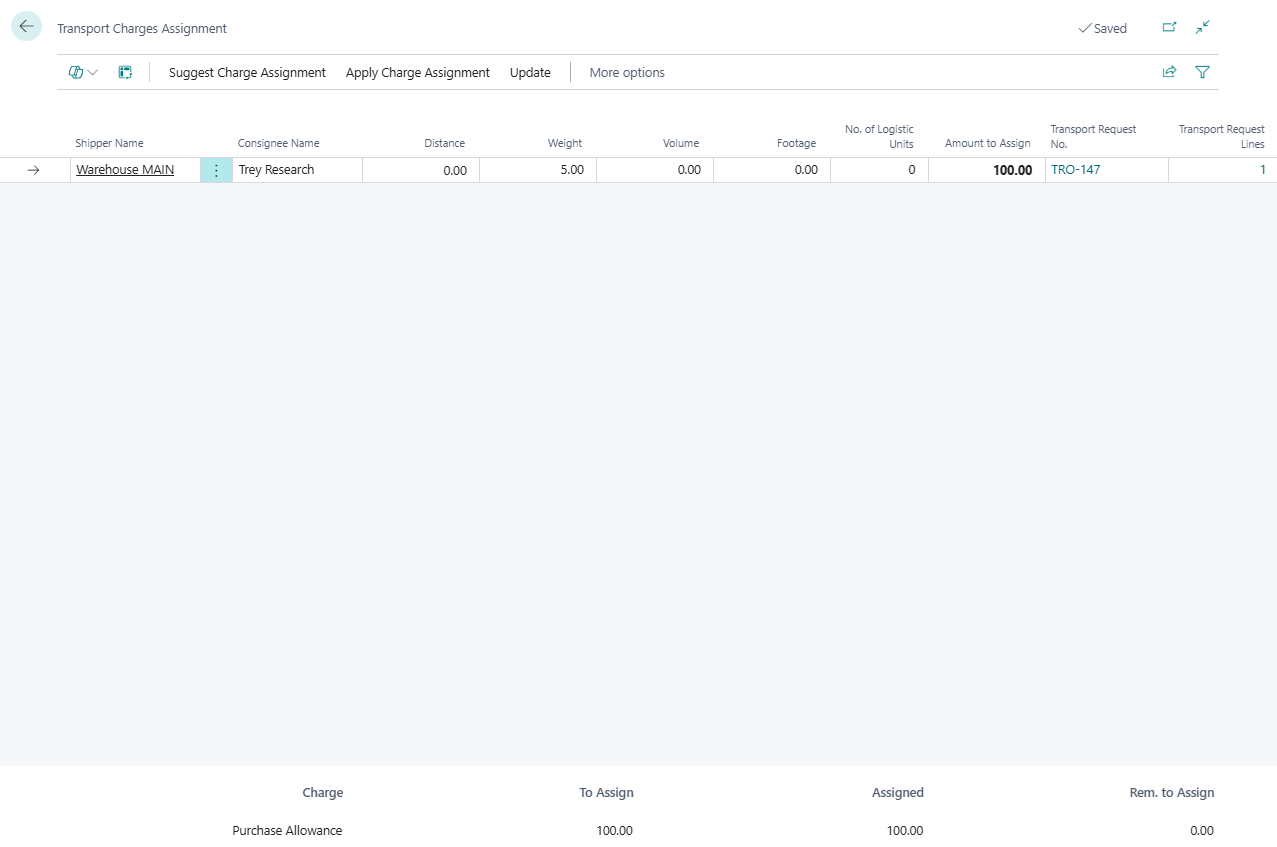
Where to work
- Open a Transport Order.
- Go to the Charges section.
- Add or review charge lines.
- Use Show Assignment when the amount must be distributed.
Expected result:
- The Transport Order shows the carrier cost or customer re-billing amount.
- Assigned amounts explain how the charge is distributed across requests, stops, or source document lines.
- Posting is easier to validate because unassigned or unlinked charges are visible before execution is completed.
Charge line fields
| Field | Use |
|---|---|
| Type | Purchase or Sales charge behavior |
| Charge No. | Item charge or charge code used by your finance process |
| Customer/Vendor Name | Account that receives or pays the charge |
| Quantity | Charge quantity |
| Price | Unit price |
| Amount | Total line amount |
| Assigned Amount | Amount already allocated inside Shipper TMS |
| Assigned Amount to Source Line | Amount distributed on linked source document item-charge assignment |
Allocate a charge
- Select the charge line.
- Choose Show Assignment.
- Choose a suggestion method:
- Equally,
- By Distance,
- By Weight,
- By Volume,
- By Footage,
- By Number of Logistic Units.
- Review Amount to Assign on each row.
- Adjust amounts manually if needed.
- Choose Apply if the allocation must be pushed to source document item-charge assignments.
- Confirm that the remaining amount is zero.
Example: allocate freight by gross weight
Use this example when one carrier freight cost must be spread across several Sales Order lines.
| Sales Order line | Gross weight | Share | Assigned amount |
|---|---|---|---|
| Line 10000 | 300 kg | 60% | 300.00 |
| Line 20000 | 200 kg | 40% | 200.00 |
| Total | 500 kg | 100% | 500.00 |
Steps:
- Add a sales or purchase transport charge line for 500.00.
- Choose Show Assignment.
- Choose By Weight.
- Review the suggested amounts.
- Choose Apply when the assignment must update the linked source document item-charge assignment.
Choosing an allocation method
| Method | Use it when | Watch for |
|---|---|---|
| Equally | Each request or source line should carry the same cost share. | Small and large shipments receive the same amount. |
| By Distance | Cost should follow route distance or drop distance. | Run Get Transport Time & Distance or Update Distances first. |
| By Weight | Freight cost is mostly driven by gross weight. | Item weights must be maintained. |
| By Volume | Truck space is driven more by cube than by weight. | Item volume must be maintained. |
| By Footage | Floor space or linear loading is the key constraint. | Footage data must be maintained consistently. |
| By Number of Logistic Units | Pallets, crates, or other unit counts drive the cost split. | Estimated or actual logistic unit quantities must be reliable. |

Why posting can be blocked
Transport Order posting can stop when charge lines do not have a complete financial path.
| Blocker | What to fix |
|---|---|
| Charge amount is not fully assigned | Open Show Assignment and assign the remaining amount |
| Source document assignment is missing | Choose Apply after reviewing the assignment |
| Linked sales or purchase charge line is not posted when required | Post or correct the source document before posting the Transport Order |
| Carrier rate type has no item charge mapping | Complete Carrier Rate Types Mapping in TMS Setup |
| Charge is only informational | Confirm the process does not require source document assignment for that charge line |
Purchase charge actions
| Action | Use it for |
|---|---|
| Add Carrier Invoice Lines | Select purchase invoice item-charge lines for assignment by drop |
| Create Self-Billing Invoice | Create a purchase invoice for the carrier or carrier agent |
| Create Self-Billing Purchase Order | Create a purchase order for the carrier or carrier agent |
Sales charge actions
| Action | Use it for |
|---|---|
| Suggest Sales Charges Lines | Suggest customer re-billing based on transport cost |
| Add Charge to Linked Sales | Add a charge line to the original sales order |
| Create Sales Invoice | Create a sales invoice for transport charges |
Good to know
- Use Update Distances in the assignment page when distance-based allocation depends on current route data.
- Use Clear Amount to Assign before rebuilding an allocation from another method.
- Use Show Item Charge Assignment to inspect the Business Central item-charge distribution.
- Posting the Transport Order can be blocked by unlinked, unassigned, or unposted charge lines.
Troubleshooting
| Problem | What to check |
|---|---|
| The assigned amount is not zero after allocation | Reopen Show Assignment, review Amount to Assign, and apply or adjust the remaining amount. |
| Distance allocation looks wrong | Run Get Transport Time & Distance or Update Distances before suggesting by distance. |
| Self-billing document is not created | Check carrier vendor setup, charge type, source link, and required Business Central purchase setup. |
| Sales rebilling is not created | Check customer, source sales document status, charge type, and item charge setup. |
| Transport Order posting is blocked | Resolve charge lines where the source link is inactive or where linked sales, purchase, or transfer charge lines are still unposted. |