Carrier Rates
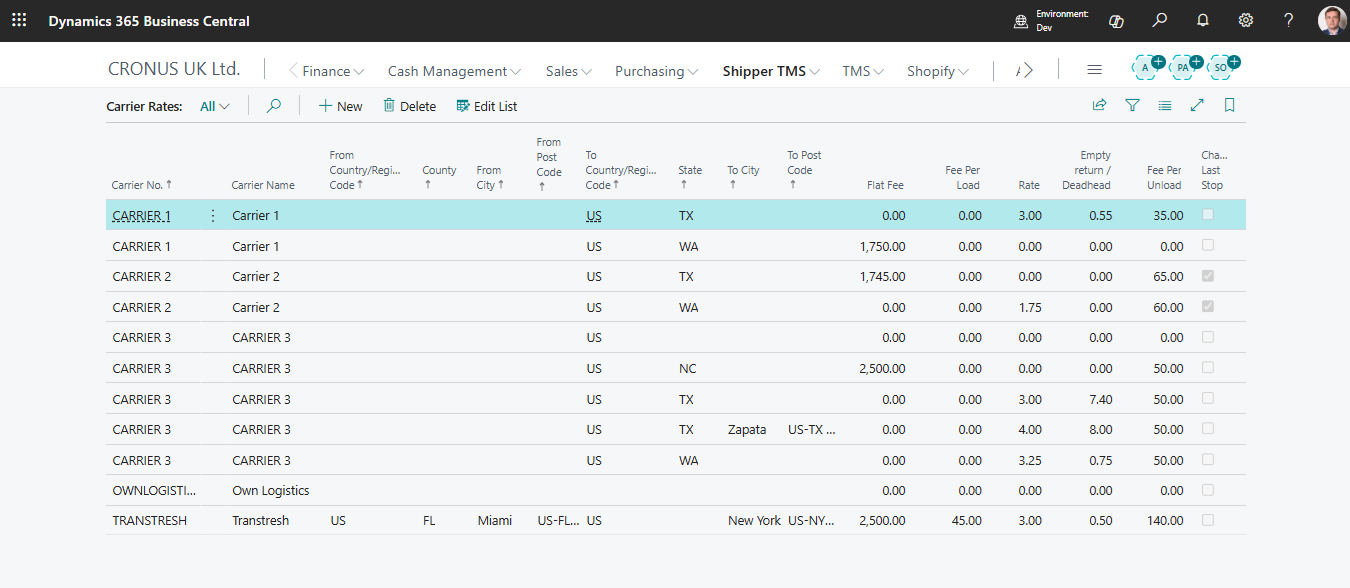
Use Carrier Rates to define how a carrier should be priced during Carrier Selection.
A rate can include:
- route-based rate amount,
- flat fee,
- fee per load,
- fee per unload,
- empty-return rate,
- geographic filters such as country/region code, county, city, or post code.
Before you start
Complete these setup items first:
- Create the Carrier.
- Configure Map Providers if you want distance-based rates.
- Enable carrier selection in TMS Setup.
- Configure Carrier Rate Type Mapping in TMS Setup.
Create a carrier rate
- Open Carriers.
- Open the carrier card.
- Choose Carrier Rates.
- Create a new line.
- Fill the origin and destination filters that define where the rate applies.
- Fill the pricing fields your company uses.
- Repeat for each lane, geography, or fee rule.
Main pricing fields
| Field | Use |
|---|---|
| Rate | Distance-based rate used for the main route |
| Empty Return Rate | Rate used for return distance or empty return logic |
| Flat Fee | Fixed amount added once for the matching rate |
| Fee Per Load | Charge added for loading activity |
| Fee Per Unload | Charge added for unload stops |
| Charge Last Stop | Controls whether the unload fee also applies to the final stop |
Geographic matching
Use the origin and destination filters to make a rate more specific. Carrier Selection currently matches rates by:
- From Country/Region Code and To Country/Region Code,
- From County and To County,
- From City and To City,
- From Post Code and To Post Code.
Important: From Region Code and To Region Code are available on Carrier Rates for classification and reporting, but the current Carrier Selection matching logic does not use those fields when it chooses a rate.
Start broad, then add specific rates only where they are needed:
- country,
- county,
- city,
- post code.
Avoid duplicate overlapping rates unless your carrier-pricing policy intentionally needs them.

Verify the rate
- Open a test Transport Order with route stops.
- Make sure the order is Open.
- Choose Carrier Selection.
- Confirm that the carrier appears.
- Review the calculated amount and cost breakdown.
Expected result:
- The carrier appears as a selectable option when the route matches the rate filters.
- The cost breakdown shows the rate components that apply to the route.
- Applying the carrier updates the Transport Order carrier fields.
Example: lane with distance and stop fees
Use this pattern when a carrier charges both a route rate and fixed operational fees.
| Component | Example value | Result |
|---|---|---|
| Main route distance | 120 km | Used with Rate |
| Rate | 2.00 per km | 240.00 |
| Fee Per Load | 25.00 | 25.00 for the loading stop |
| Fee Per Unload | 30.00 | 30.00 for the unloading stop |
| Empty return distance | 40 km | Used with Empty Return Rate when empty return applies |
| Empty Return Rate | 1.50 per km | 60.00 |
| Flat Fee | 50.00 | 50.00 |
The calculated carrier amount in this example is 405.00 before taxes or finance-specific charges. If Auto Create Charge Line is enabled, each cost component that creates a charge must have a valid Carrier Rate Type Mapping.
Troubleshooting
| Problem | Check |
|---|---|
| Carrier does not appear | Carrier is blocked or not eligible |
| Carrier Selection returns no carriers | Confirm the Transport Order has route stops, the order is Open, carrier selection is enabled, and at least one unblocked carrier has matching rate geography. |
| Amount is zero | No matching rate exists or only a fallback comparison row was created |
| Rate is too high or too low | Distance, empty-return setup, fees, and geographic filters |
| A rate with Region Code is ignored | Use country/region code, county, city, or post code for matching. Region Code is not used by the current Carrier Selection matching logic. |
| Auto charge line is missing | Auto Create Charge Line and Carrier Rate Type Mapping in TMS Setup |
| Mapping error when applying a carrier | Every selected rate type that creates a charge must have an item charge mapping |