Carrier Rate Type Mapping
Use Carrier Rate Type Mapping when Carrier Selection should create freight charge lines after a planner chooses a carrier option.
Carrier Selection can calculate several cost components, such as rate, load fee, unload fee, empty return, and flat fee. The mapping tells Shipper TMS which Business Central Item Charge No. to use for each component when automatic charge creation is enabled.
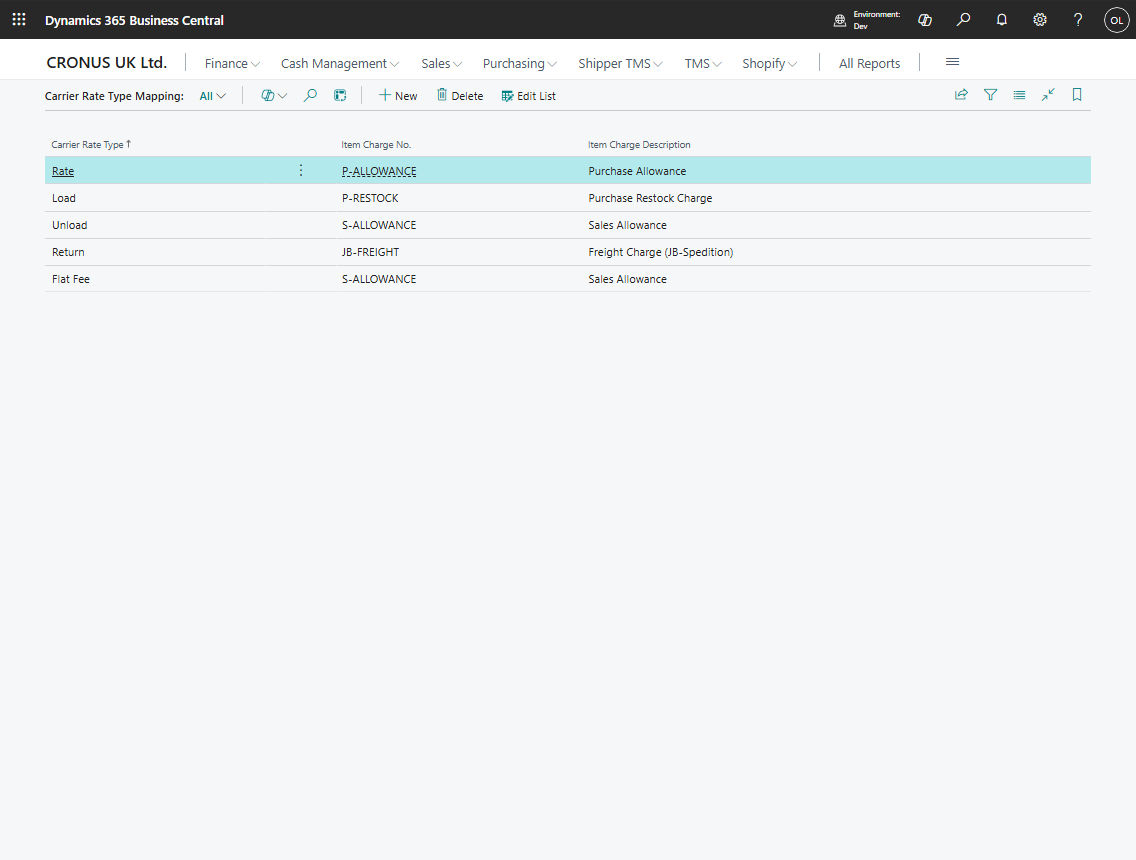
Use this page when
- your planners use Carrier Selection,
- Auto Create Charge Line is enabled in TMS Setup,
- selected carrier rates should become purchase charge lines on the Transport Order,
- finance needs each rate component posted with the correct item charge.
Before you start
Make sure that:
- item charges exist in standard Business Central,
- the carrier used in Carrier Selection is vendor-based and has a Source No.,
- Carrier Selection Enabled is turned on in TMS Setup,
- Auto Create Charge Line is turned on if you want charge lines created automatically.
Create a mapping
- Search for Carrier Rate Type Mapping.
- Choose New.
- Select Rate Type.
- Select Item Charge No..
- Confirm that Item Charge Description is filled from the selected item charge.
Expected result:
- when a planner selects a carrier, Shipper TMS can create one transport charge line for each non-zero carrier selection entry;
- the charge line uses the item charge mapped to the entry’s rate type.
Recommended mapping pattern
| Rate type | Typical item charge | Why it matters |
|---|---|---|
| Rate | FREIGHT | Main distance-based carrier cost |
| Flat Fee | FREIGHT-FIXED | Fixed carrier fee applied once |
| Load | LOADING | Loading fee at the origin |
| Unload | DELIVERY | Unload or stop fee |
| Return | EMPTY-RETURN | Empty return cost |
Your item charge numbers can be different. Use names that match your finance and reporting rules.
How it works with Carrier Selection
When a user selects a carrier on an Open Transport Order:
- Carrier Selection writes the selected Carrier No. to the order.
- If Auto Create Charge Line is off, no charge lines are created.
- If Auto Create Charge Line is on, Shipper TMS checks whether the selected carrier is vendor-based and has a vendor source number.
- For each non-zero carrier selection entry, Shipper TMS looks up the matching Carrier Rate Type Mapping.
- If the mapping exists and has an Item Charge No., a purchase transport charge line is created.
Common problems
| Problem | What to check |
|---|---|
| Carrier Selection shows an amount, but no charge line is created | Turn on Auto Create Charge Line and confirm the selected carrier has Source Type = Vendor and a Source No. |
| A mapping error appears when applying a carrier | Add a mapping for every rate type that can produce a non-zero amount. |
| A charge line is created with the wrong item charge | Review the mapping for the selected rate type. |
| A zero-amount entry does not create a charge line | This is expected. Shipper TMS creates charge lines only for non-zero carrier selection entries. |