Carrier Selection
Use Carrier Selection on an Open Transport Order when you want Shipper TMS to compare carriers for the current route.
The feature helps planners choose a carrier based on configured rates instead of manual estimates.
Before you start
Make sure these items are in place:
- Carrier Selection Enabled is turned on in TMS Setup.
- Carrier Rates exist for the carriers you want to compare.
- Carrier Rate Type Mapping is configured if automatic charge lines will be created.
- The Transport Order is Open.
- Route stops are already defined.
- If you want automatic charges, Auto Create Charge Line is enabled.
Run Carrier Selection
- Open the Transport Order.
- Make sure the order status is Open.
- Review route stops, addresses, and distance data.
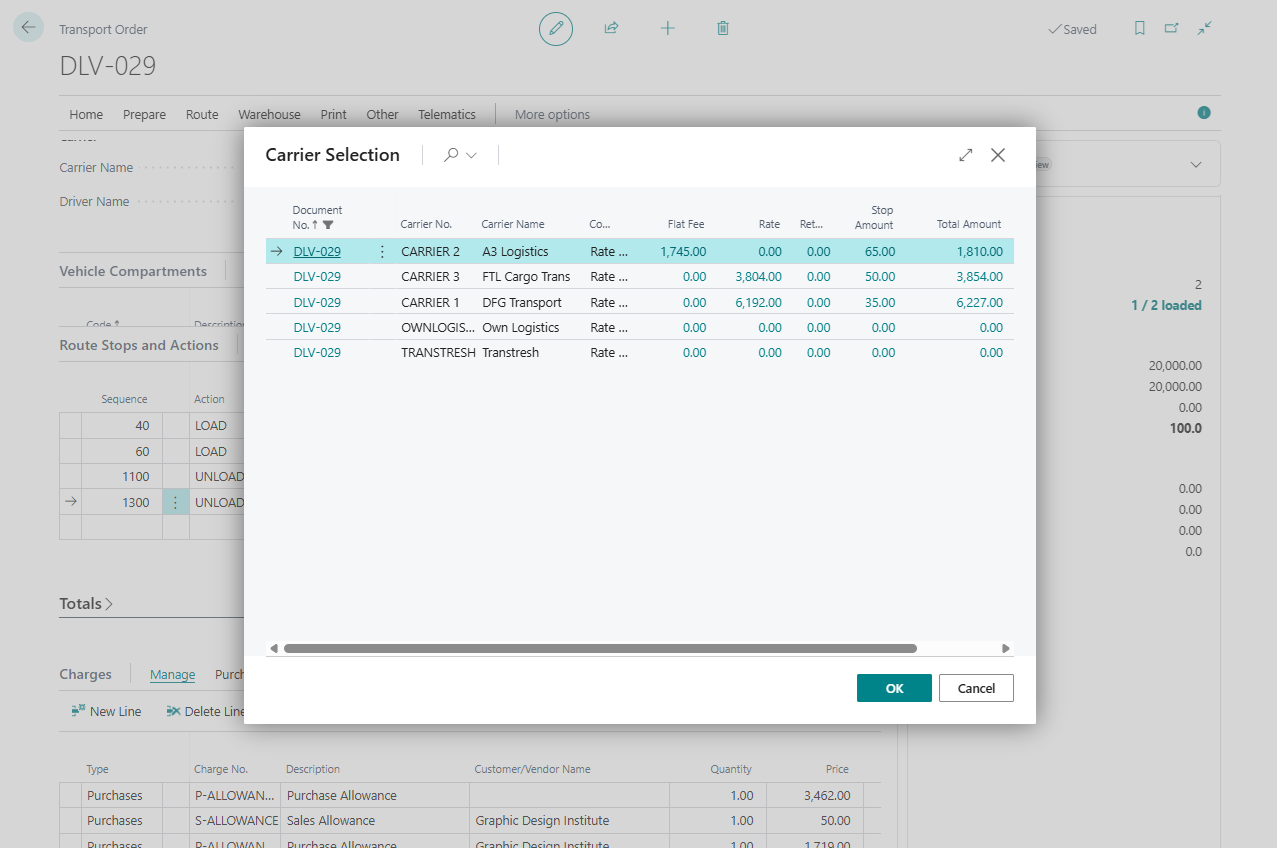
- Choose Carrier Selection.
- Review the returned carrier rows.
- Open or review the cost breakdown if needed.
- Select the carrier you want to use.
- Confirm that Carrier No. and Carrier Name are updated on the order.
- If automatic charge creation is enabled, review Transport Charges.
Expected result:
- The selected carrier is written to the Transport Order.
- If the carrier is vendor-based and Auto Create Charge Line is enabled, Shipper TMS creates transport charge lines from the carrier selection entries.
- If automatic charge creation is not enabled, the carrier is selected but charges must be created or reviewed manually.
What the comparison can include
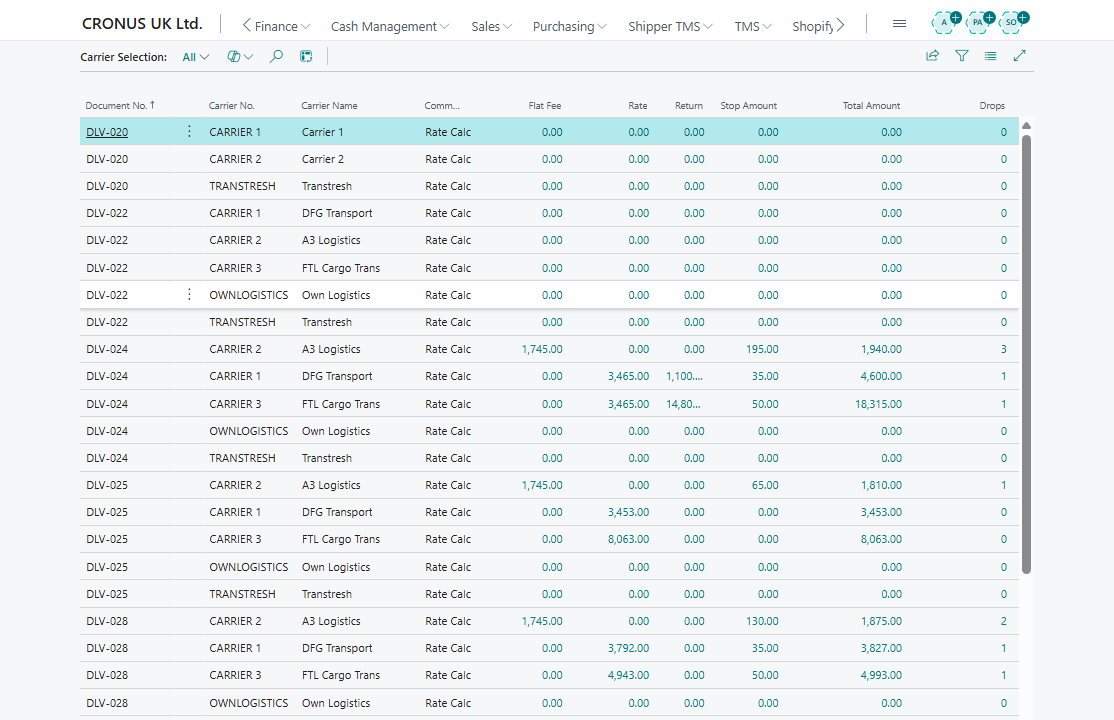
The calculation can include:
- route-based rate amount,
- flat fee amount,
- fee per load,
- fee per unload,
- empty-return amount,
- carrier start or end map locations when configured on the carrier.
When you apply the result, the selected carrier is written back to the Transport Order.
If Auto Create Charge Line is enabled, Shipper TMS can also create charge lines on the order.
How setup records work together
| Setup record | Why it matters |
|---|---|
| Carrier | Defines the provider, source vendor/customer relationship, default vehicle, default driver, and optional start or end map locations |
| Default Vehicle | Supplies vehicle capacity and may carry a unit type used for routing or planning |
| Default Driver | Gives planners a suggested driver when the carrier represents own-fleet or dedicated resources |
| Start MAP Location No. and End MAP Location No. | Add carrier depot or return legs when the rate logic uses them |
| Carrier Rate | Defines geographic matching and rate components |
| Carrier Rate Type Mapping | Maps rate components to Business Central item charges for automatic charge-line creation |
| Item Charge Assignment | Determines whether created charge lines must be assigned back to source document lines before posting |
How rate matching works
Carrier Selection looks for rates that match each route leg. It matches the carrier and these origin/destination fields:
- country/region code,
- county,
- city,
- post code.
The matching logic accepts a blank value on the rate as a broad rule. For example, a rate with a blank city can still match routes in several cities if the other filters match.
From Region Code and To Region Code can be stored on Carrier Rates, but they are not used by the current Carrier Selection matching logic.
When automatic charge lines are created
Selecting a carrier does not always create charge lines. Shipper TMS creates charge lines only when all of these are true:
- Auto Create Charge Line is turned on in TMS Setup;
- the selected carrier has Source Type = Vendor;
- the selected carrier has a vendor Source No.;
- the selected carrier option has at least one non-zero cost entry;
- each non-zero cost entry has a matching Carrier Rate Type Mapping.
If any of those conditions is not met, the carrier can still be selected, but charges must be reviewed or entered manually.
Troubleshooting
| Problem | What to check |
|---|---|
| The action is unavailable | The Transport Order must be Open, and Carrier Selection Enabled must be turned on in TMS Setup. |
| Carrier Selection returns no carriers | The carrier must not be blocked, the order must have usable route stops or distances, and at least one rate must match the route geography. |
| A rate with Region Code does not match | Region Code is not used by the current matching logic. Use country/region code, county, city, or post code. |
| Amount is zero or unexpected | Check distance, empty return setup, flat fee, load/unload fees, and origin/destination filters. |
| The wrong carrier start or end point is used | Review Start MAP Location No. and End MAP Location No. on the carrier. |
| Charge lines are missing | Check Auto Create Charge Line, carrier source vendor, and Carrier Rate Type Mapping. |
| A mapping error appears | Add a mapping for each carrier selection entry type that can create a charge line. |