Map providers
Shipper TMS uses a map provider for:
- geocoding addresses,
- showing routes on a map,
- calculating distance and duration,
- route optimization,
- route-distance caching.
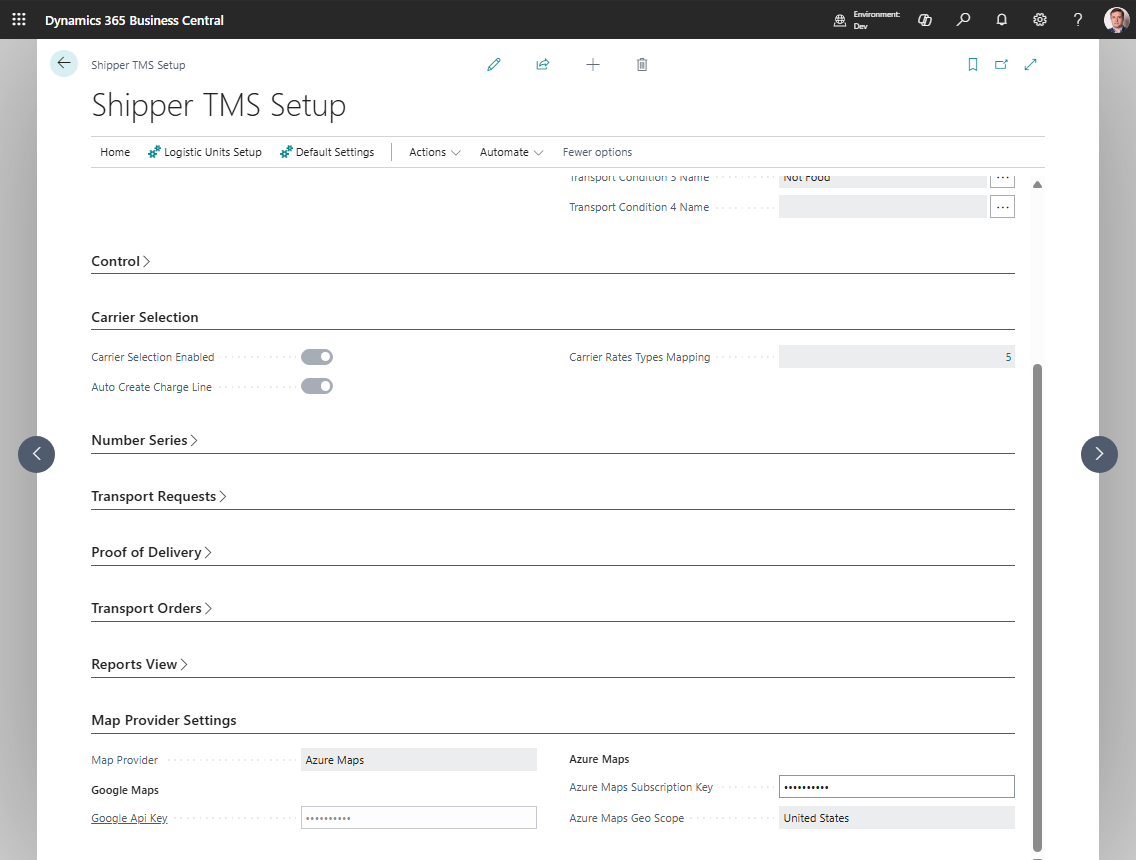
How to work with map provider setup
- Decide which provider your company will use.
- Configure the provider account outside Business Central.
- Open Shipper TMS Setup.
- Select Map Provider.
- Enter the required provider key.
- Create or update Map Locations so important stops have coordinates.
- Test Geocode address on a Map Location.
- Test Show Route or Get Transport Time & Distance from a Transport Request or Transport Order.
- If using Azure Maps for truck-aware routing, configure Vehicle Routing Profiles.
Which provider should you choose
| Provider | Best when | Main limitation to check |
|---|---|---|
| Google Maps | You need standard address geocoding and road routing | Truck-specific routing fields are not used like Azure Maps routing profiles |
| Azure Maps | You need truck-aware routing with vehicle restrictions | Requires Azure Maps setup and vehicle routing profiles for truck constraints |
Configure the provider in TMS
- Open Shipper TMS Setup.
- Go to Map Provider Settings.
- Select Map Provider.
- Enter the required key:
- Google Api Key
- or Azure Maps Subscription Key
- For Azure Maps, select Azure Maps Geo Scope if your company needs a specific processing region.
Security note
Map provider keys are secrets.
- Do not include API keys or subscription keys in screenshots.
- Mask keys before sharing setup screenshots with support or consultants.
- Rotate keys according to your provider and company security policy.
Troubleshooting
| Problem | Check |
|---|---|
| Geocoding does not return coordinates | Provider key, map provider selection, address quality |
| Route does not show | Coordinates, provider key, browser restrictions, route stop data |
| Distance does not update | Provider selection, key, route stop coordinates, Distance Matrix |
| Truck-aware routing is ignored | Azure Maps provider, unit type, Vehicle Routing Profile |
When to recalculate distance
Recalculate distance and duration after changing:
- shipper or consignee address;
- route stop order;
- carrier depot/start/end map location;
- map provider;
- vehicle or logistic unit type used for Azure truck routing;
- vehicle routing profile restrictions.