Google Maps integration
Use this guide when your company wants Shipper TMS to use Google Maps for:
- address geocoding,
- route display,
- distance calculation,
- travel-time estimation.
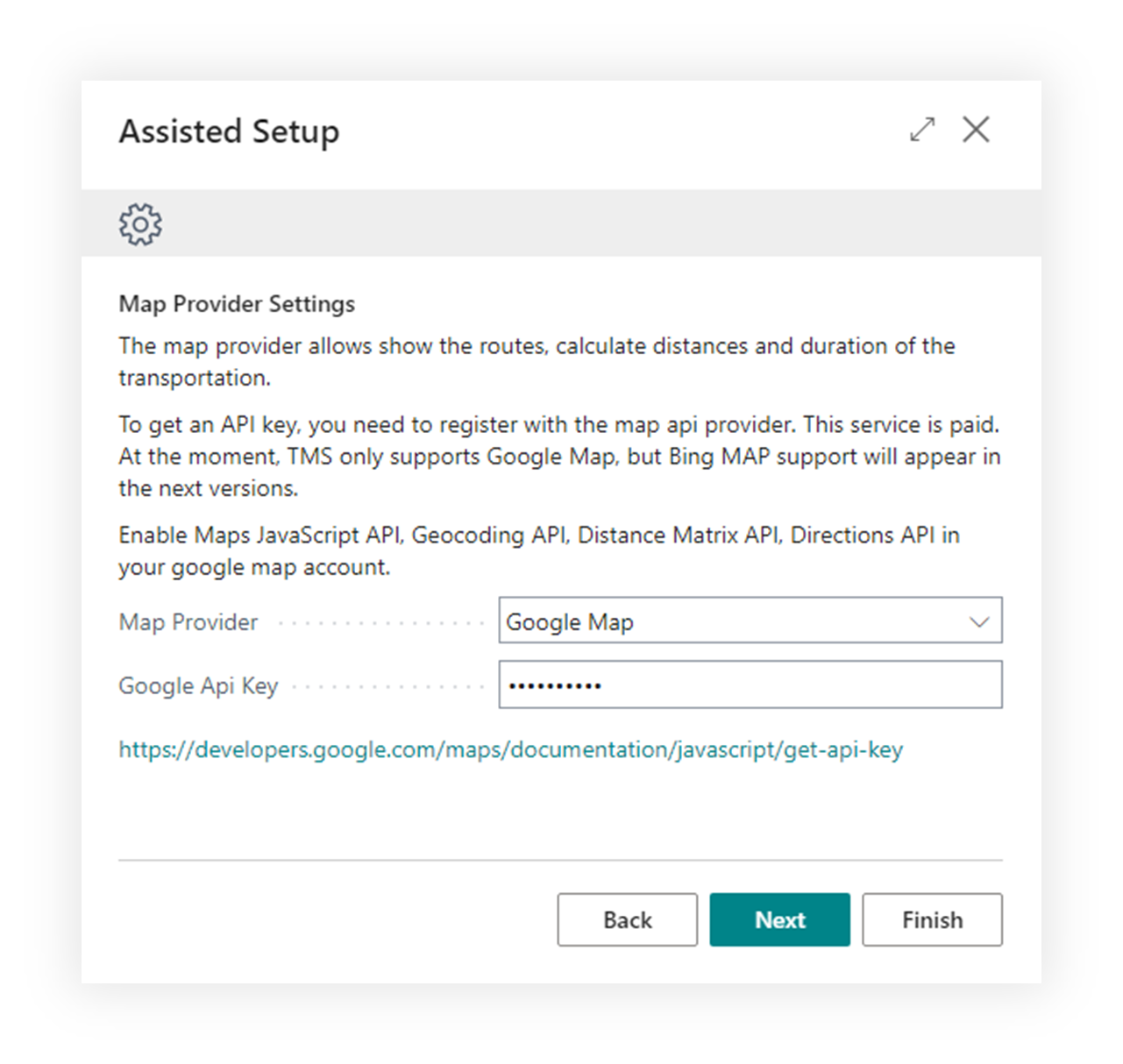
How to work with this setup
Use this page when Google Maps is the selected provider.
- Prepare the Google Cloud project.
- Enable the required APIs.
- Create or copy the API key.
- Open Shipper TMS Setup.
- Set Map Provider to Google Maps.
- Enter Google Api Key.
- Test geocoding from a Map Location.
- Test route display or distance calculation from a Transport Request or Transport Order.
Before you start
- You need a Google Cloud project.
- Billing must be enabled for that project.
- The Google Cloud interface may change over time, but the required API concepts stay the same.
Required Google APIs
Enable these APIs for the project you use with Shipper TMS:
- Maps JavaScript API
- Directions API
- Geocoding API
- Distance Matrix API
Create the API key
- Open the Google Cloud Console.
- Go to APIs & Services > Credentials.
- Choose Create credentials > API key.
- Copy the generated key.
- Restrict the key according to your company’s security policy.
Enter the key in Shipper TMS
- Open Shipper TMS Setup.
- In Map Provider Settings, set Map Provider to Google Maps.
- Paste the key into Google Api Key.
Verify the connection
- Open a Map Location with a valid address.
- Choose Geocode address.
- If coordinates are filled successfully, open the route or map view to confirm the provider is working.