Posted Transport Orders
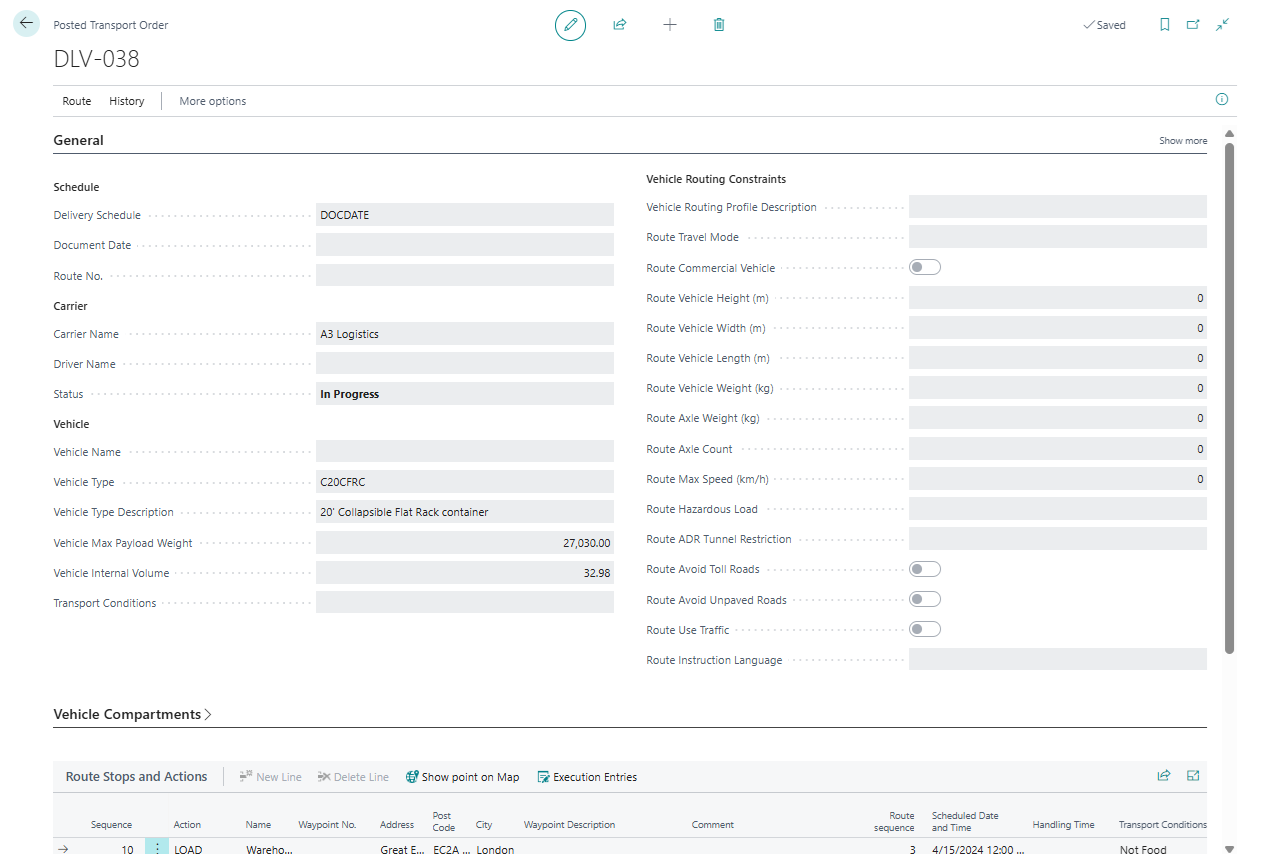
A Posted Transport Order is the read-only history of a completed Transport Order.
Use it to review what was posted:
- route stops,
- vehicle, driver, and carrier,
- source document links,
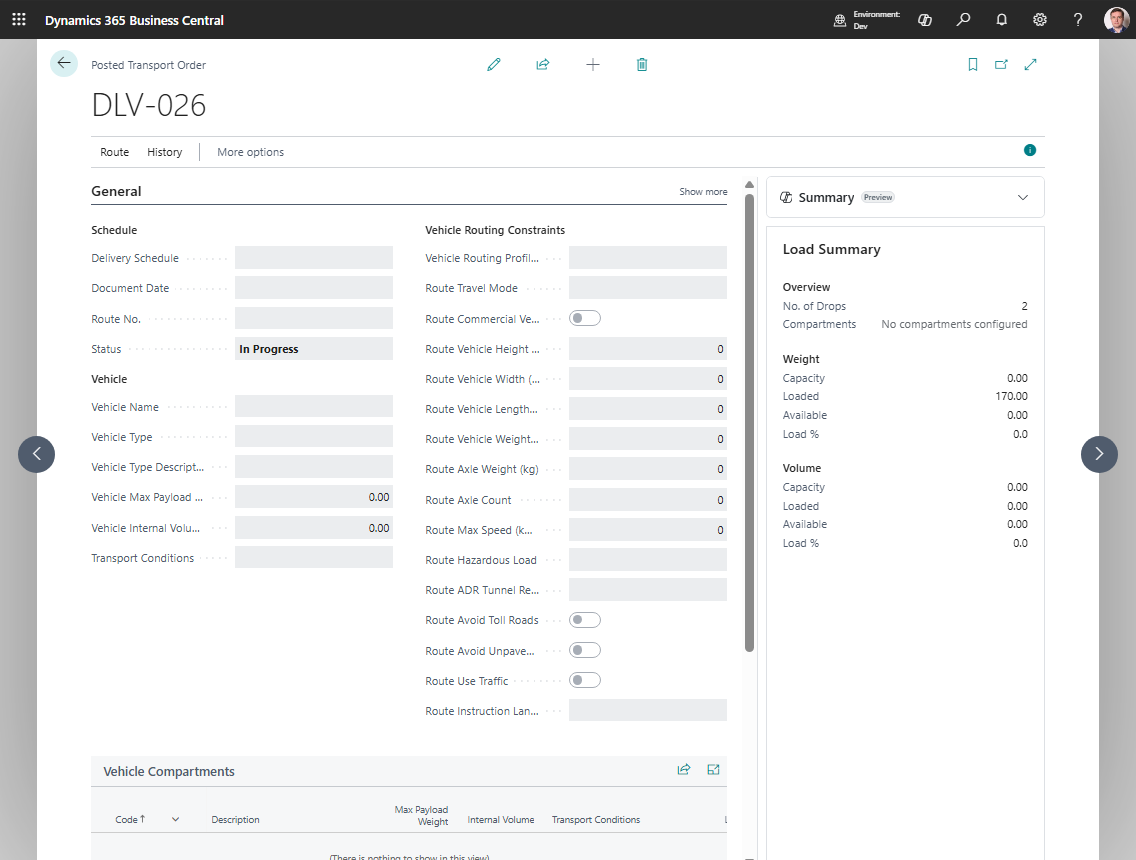
- capacity totals,
- transport charges,
- charge assignments,
- execution entries,
- printed-document history.
How records are created
Posted Transport Orders are created when a Transport Order is posted.
Posting removes the live order and stores the result in posted history.
What moves to history
| Live record | Posted or history record | What it preserves |
|---|---|---|
| Transport Order header | Posted Transport Order header | Final carrier, driver, vehicle, dates, totals, route context, and document numbers |
| Transport Order Lines | Posted Transport Order Lines | Final load, unload, route-stop, and source document references |
| Transport Charges | Posted Transport Charges | Final charge amounts and source links |
| Charge Assignments | Posted Charge Assignments | Final allocation basis and assigned amounts |
| Execution Entries | Execution Entries linked to posted history | Status events, PoD facts, and attachments created before posting |
Related record types
| Record type | Meaning |
|---|---|
| Transport Order Lines | Live route stops and request lines on an unposted Transport Order |
| Posted Transport Order Lines | Read-only route and source-line history after posting |
| Execution Entries | Delivery events, statuses, coordinates, proof notes, or integration facts |
| Execution Entry Attachments | Pictures, signatures, documents, or other evidence attached to an execution entry |
Open a posted order
- Search for Posted Transport Orders.
- Open the list.
- Select the posted order.
- Open the card.
- Review lines, route stops, charges, and execution entries.
Expected result:
- You can review the final posted route, resources, source document links, charges, and execution history.
- The posted order is read-only. Use related finance or source documents for financial correction processes.
What you can do
| Action | Use it for |
|---|---|
| Show Route | Review the posted route on the map |
| Execution Entries | Review delivery and proof-of-delivery facts |
| Posted Charges | Review posted charge lines and assignments |
| Print actions | Reprint documents when allowed by your report setup |
Good to know
- Posted orders are read-only operational history.
- Use the posted order for audit and customer-service questions.
- Financial corrections should be handled through the related sales, purchase, or finance documents.
- Execution attachments may be available through execution entries, depending on your PoD and telematics setup.
What is no longer editable
After posting, users should treat the posted order as history. Do not expect to change:
- carrier, vehicle, or driver assignment;
- route stops or stop sequence;
- Transport Request assignment;
- posted transport charge lines and allocation history;
- source document links copied to posted history.
If a business correction is needed, handle it through the related finance, warehouse, or source-document correction process instead of editing posted transport history.
Troubleshooting
| Problem | What to check |
|---|---|
| The posted order is missing | Confirm the live Transport Order was posted. Released or In Progress orders are still live documents. |
| A user cannot edit the posted order | Posted Transport Orders are read-only by design. |
| Execution entries are missing | Check whether execution events were recorded before posting or synchronized from telematics. |
| Charges do not match finance expectations | Review posted charges and the related sales or purchase documents used for billing or self-billing. |