Visual Scheduler
Use Visual Scheduler when you want a timeline view of transportation work instead of a worksheet.
It is best for planners who want to see:
- when requests are planned,
- which requests are already grouped into orders,
- how the load changes over time,
- and where quick drag-and-drop adjustments are possible.
Which planning tool should I use?
| Planner question | Best tool |
|---|---|
| How does the plan look on a timeline? | Visual Scheduler |
| Which released requests should be grouped first? | Transport Request Load Planning |
| What should this truck carry? | Truck Load Management |
| Which driver has a conflict? | Driver Load Management |
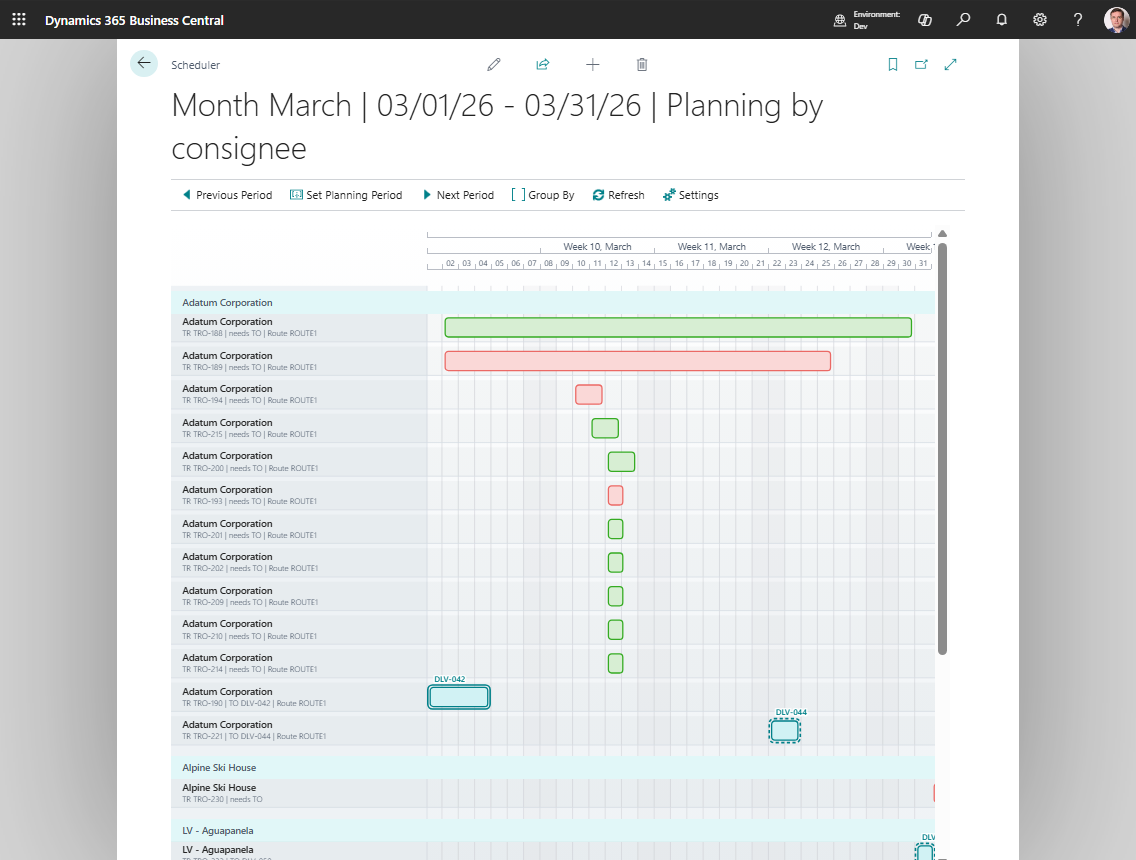
What the scheduler can show
The scheduler works with Transport Requests and the Transport Orders that group them.
Typical grouping options include:
- Carrier
- Driver
- Vehicle
- Route
- Consignee
- Shipper
- Transport Condition
Before you start
- Transport Requests should have load and unload date/time values.
- Requests must be Released before they can be assigned to Transport Orders.
- Transport Orders must be Open before visual rescheduling or request assignment can change them.
- Use Truck Load Management or Driver Load Management first when resource slots must be validated before scheduling.
Main interactions
Depending on status and current context, planners can:
- move a request in time,
- resize a request to change the unload timing,
- drop a request into an Open Transport Order,
- open the related request or order,
- create a new Transport Order from selected requests.
Task shortcuts
| User goal | What to do |
|---|---|
| Change when a released request should happen | Drag the request to the new date or time, then refresh if needed. |
| Extend or shorten a visible request duration | Resize the request edge when the request is editable. |
| Put a request on an existing trip | Drop the request on an Open Transport Order. |
| Build a new trip from several requests | Multi-select eligible requests and choose Create Transport Order. |
| Review details before changing the plan | Open the related Transport Request or Transport Order from the scheduler. |
Timeline rules and limits
| Rule | Why it matters |
|---|---|
| Transport Requests must be eligible before assignment | The scheduler cannot bypass planning rules from the request and order workflow |
| Target Transport Orders must be Open | Released and In Progress orders are protected from visual edits |
| Dragging changes timing only when the workflow allows it | Locked request dates or assigned transport documents can prevent changes |
| Capacity and conflicts still need review | Visual grouping does not replace truck-load or driver validation when those controls are used |
| Driver and vehicle must match carrier rules | If the scheduler blocks a driver or vehicle change, review carrier assignments on the resource and on the Transport Order |
How to work in this window
Use this window when timing and visual grouping matter more than field-by-field planning.
- Set the visible period with Previous Period, Set Planning Period, or Next Period.
- Choose a Group By option:
- Carrier when you review subcontractor or fleet workload,
- Driver when you check driver workload,
- Vehicle when you check equipment usage,
- Route when you plan geographically,
- Consignee or Shipper when you review demand by business partner,
- Transport Condition when special handling matters.
- Review unassigned Transport Requests and grouped Transport Orders on the timeline.
- Drag an eligible request to change its timing. The request timing changes when the document status allows it.
- Resize the request edge when you need to change the unload timing.
- Drag a request into an Open Transport Order when it should travel with that order. The request is assigned to the order and the order route is refreshed.
- Double-click or use the context menu to open the related document.
- Use multi-select and create a Transport Order when several eligible requests should become one trip. A new Transport Order is created for the selected released requests.
- Choose Refresh after changes made outside the scheduler.
If a request or order cannot be moved, check the document status. Released or In Progress orders are intentionally protected from visual rescheduling.
When to use it
Use Visual Scheduler when you want to:
- spot gaps or overloads in the calendar,
- review work by route, vehicle, or driver,
- make quick timing adjustments,
- group eligible requests visually before creating the trip.
Troubleshooting
| Problem | What to check |
|---|---|
| A request cannot be moved | Check request status and whether the timing fields are protected by the current workflow. |
| A request cannot be dropped into an order | The target Transport Order must be Open, and the request must be eligible for assignment. |
| An order cannot be changed visually | Released and In Progress orders are protected from visual planning changes. |
| Timeline looks incomplete | Check the visible period, grouping option, filters, and whether documents have planning dates. |
| Changes made elsewhere are missing | Choose Refresh. |