Driver Load Management
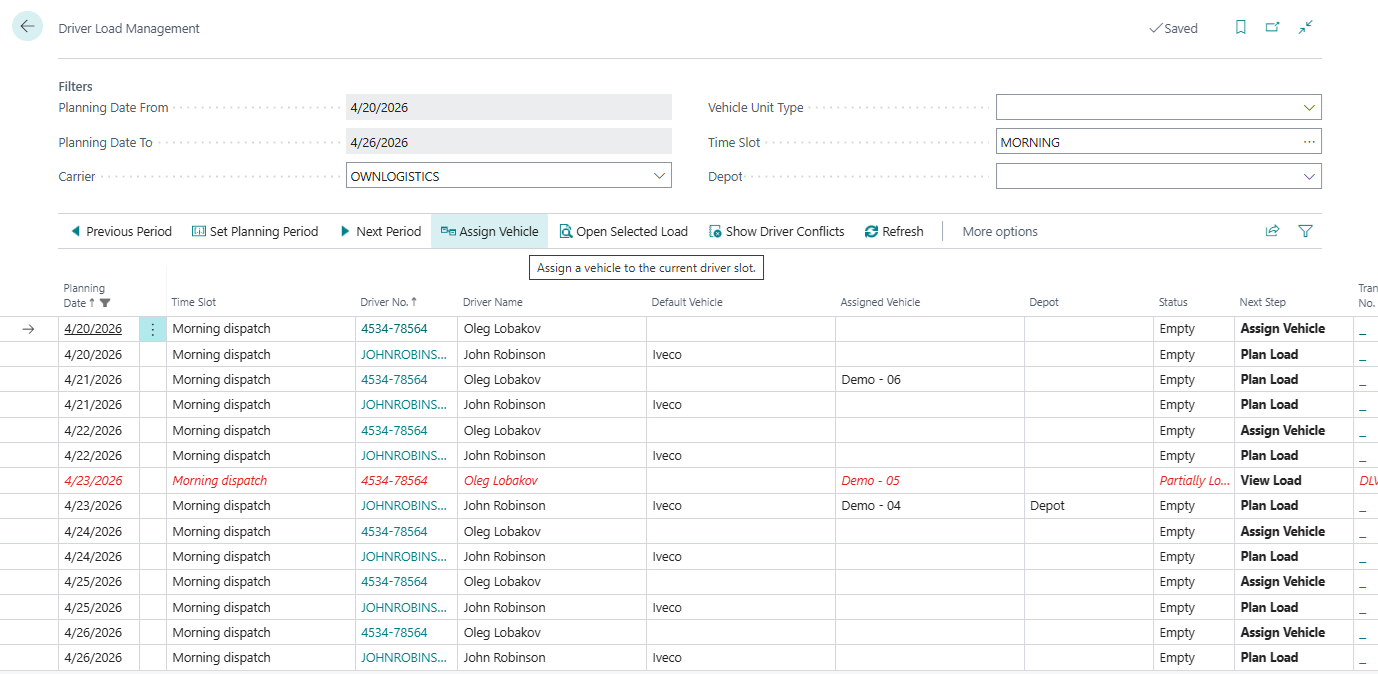
Use Driver Load Management when you want to plan from the driver side first.
This page answers the question: “Which driver is working in this time slot, with which vehicle, and are there any conflicts?”
When to use it
Use Driver Load Management when you need to:
- check driver availability,
- assign or change the vehicle for a driver,
- review the current load linked to a driver,
- detect double-booking or overlapping work,
- resolve driver-specific conflicts.
Use Truck Load Management when the main question is what a specific vehicle should carry. Use Driver Load Management when the main question is whether a driver is available and correctly assigned.
Which planning tool should I use?
| Planner question | Best tool |
|---|---|
| Is this driver available for this slot? | Driver Load Management |
| What should this truck carry? | Truck Load Management |
| Which requests should be grouped first? | Transport Request Load Planning |
| Where do driver loads overlap on a timeline? | Visual Scheduler |
Before you start
- Configure Truck Load Time Slot Profile in TMS Setup.
- Create drivers and link them to carriers when carrier-specific driver filtering is used.
- Create vehicles and default driver assignments if your company relies on default fleet planning.
- Make sure vehicle and driver records are not blocked.
What the page shows
Each row represents one driver slot:
- driver,
- planning date,
- time slot,
- assigned or default vehicle,
- linked Transport Order,
- load percentage,
- conflict information.
How to work in this window
Use this window when the question is about driver availability or driver workload.
- Set the period with Previous Period, Set Planning Period, or Next Period.
- Use Carrier to show drivers for one carrier.
- Use Vehicle Unit Type if the driver must work with a certain type of equipment.
- Use Time Slot to focus on one shift or delivery window.
- Use Depot to show only drivers linked to vehicles from one depot.
- Select a driver slot.
- Check Default Vehicle, Assigned Vehicle, Status, Next Step, Load %, and conflict columns.
- If the driver has no vehicle for the slot, choose Assign Vehicle. The driver slot receives a manual vehicle assignment if the target vehicle is available.
- If the wrong vehicle was assigned manually, choose Clear Assigned Vehicle. The manual assignment is removed if the vehicle slot does not already carry a load.
- Choose Open Selected Load to review the load connected to that driver.
- If there is a conflict, choose Show Driver Conflicts and review the cause.
- Use Open Transport Order when you need to adjust the execution document itself.
If you need to move work from one driver to another, open the selected load and use Move to Another Driver from the load detail page.
Main actions
| Action | Use it for |
|---|---|
| Assign Vehicle | Assign a vehicle to the selected driver slot |
| Clear Assigned Vehicle | Remove the manual vehicle assignment |
| Open Selected Load | Open the truck-load detail for the selected driver |
| Open Transport Order | Open the linked order directly |
| Show Driver Conflicts | Review conflict details for the selected slot |
Typical workflow
- Open Driver Load Management.
- Set the planning period and filters.
- Select the driver slot you want to review.
- If needed, choose Assign Vehicle.
- Choose Open Selected Load to inspect the linked work.
- If the slot shows a conflict, choose Show Driver Conflicts and resolve it.
Conflict and availability indicators
| Indicator | Meaning |
|---|---|
| Assigned vehicle | Vehicle manually assigned to the driver slot |
| Default vehicle | Vehicle suggested from driver or vehicle master data |
| Linked Transport Order | Load already connected to the driver slot |
| Load % | Capacity usage of the linked load |
| Conflict count | Number of driver conflicts for the selected period or slot |
| Status or next step | What the planner should do next for the driver slot |

Common conflict examples
| Conflict | What it usually means | Typical fix |
|---|---|---|
| Driver has overlapping work | The same driver is linked to more than one load in the same period or time slot. | Move one load to another driver or change the time slot. |
| Vehicle is not available for the driver slot | The assigned vehicle is already used or does not have a valid truck slot for the same date and time. | Assign another vehicle or move the load. |
| Default vehicle does not match the plan | The driver has a default vehicle, but the load is planned on another vehicle. | Confirm the manual assignment or clear and reassign the vehicle. |
| Driver is required before release | Setup requires a driver before releasing the truck load, but the linked order has no driver. | Assign a driver before choosing Release Load. |
Example: driver-first planning
- Open Driver Load Management for the planning date.
- Filter to the carrier and time slot.
- Select the driver you want to schedule.
- Assign a vehicle if the slot has no valid vehicle.
- Open the selected load and review requests, capacity, and route.
- If a conflict appears, open Show Driver Conflicts and move the load, vehicle, or driver assignment.
Troubleshooting
| Problem | What to check |
|---|---|
| A driver is missing | Check driver setup, carrier filter, planning period, time slot, depot filter, and blocked status. |
| Assign Vehicle fails | The selected vehicle must have a truck slot for the same date and time slot and must not be occupied by a blocking assignment. |
| Clear Assigned Vehicle fails | You cannot clear the assignment if the related vehicle slot already has a load. |
| Conflict count is not zero | Use Show Driver Conflicts and resolve overlapping assignments or availability problems. |
| Open Selected Load opens nothing | The driver slot may not yet have a linked Transport Order. Plan the vehicle load first. |