Use case: Complete and post a Transport Order
Goal
Complete execution and move a live Transport Order to posted history.
When to use it
Use this flow after route, carrier, vehicle, driver, warehouse, charges, and execution facts are ready.
Before you start
- The Transport Order has route lines.
- Required charges are assigned or handled.
- Warehouse work is complete if your process requires it.
- Execution entries and PoD facts are reviewed if required.
Steps
- Open the Transport Order.
- Confirm planning is complete.
- Choose In Progress when execution starts.
- Record execution entries or synchronize them from telematics.
- Review charge assignments.
- Resolve source document charge posting blockers.
- Choose Post.
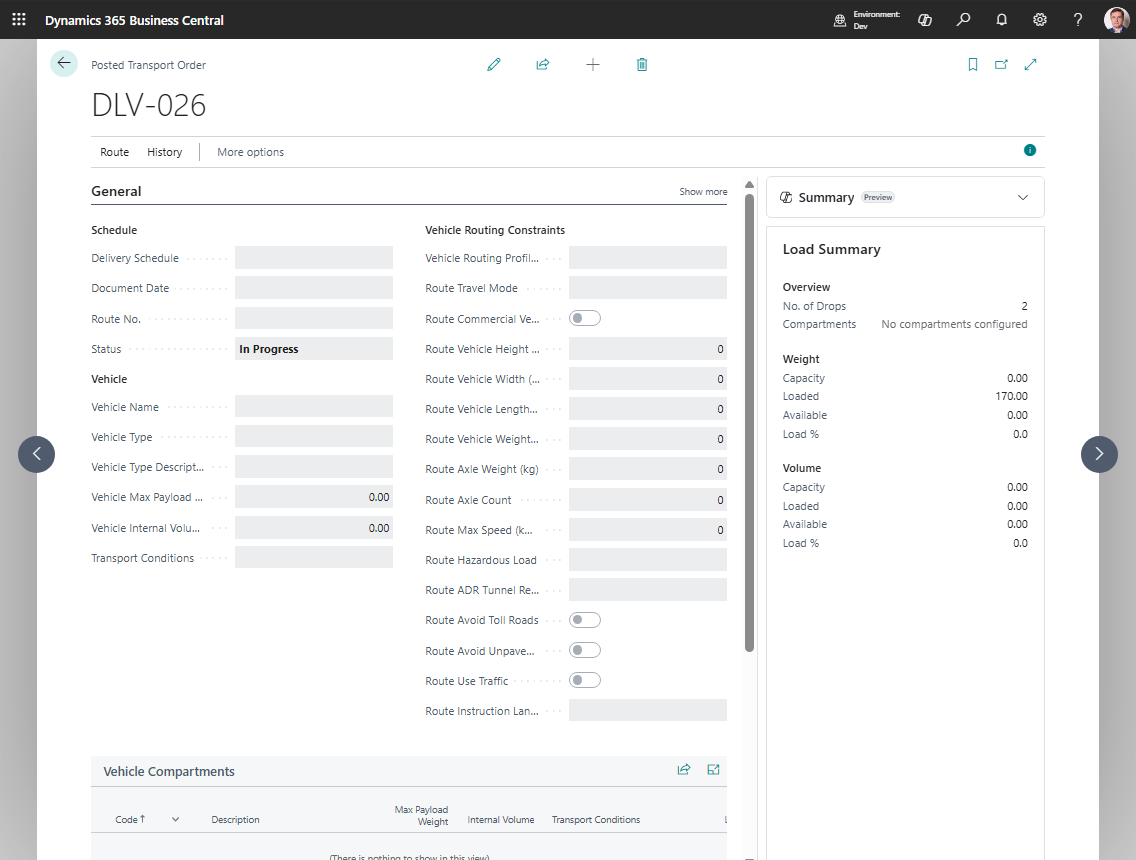
- Open Posted Transport Orders and review the posted order.
Expected result
- The live Transport Order is removed from the active order list.
- A Posted Transport Order is created.
- Posted lines, charges, assignments, and execution history are available for review.
What to do next
Use posted history for audit, customer service, or delivery proof review.
Common errors
| Problem | What to check |
|---|---|
| Post is unavailable | Order must be In Progress |
| Posting fails | Missing route lines, unassigned charges, unposted source charge lines, or required execution data |
| Posted order is not found | Confirm posting completed and search Posted Transport Orders |