Zones
Use Zones when your company wants to plan and classify transportation by geographic area instead of only by address.
Typical zone examples:
- depot areas,
- delivery regions,
- warehouse yards,
- terminal zones,
- telematics geofences.
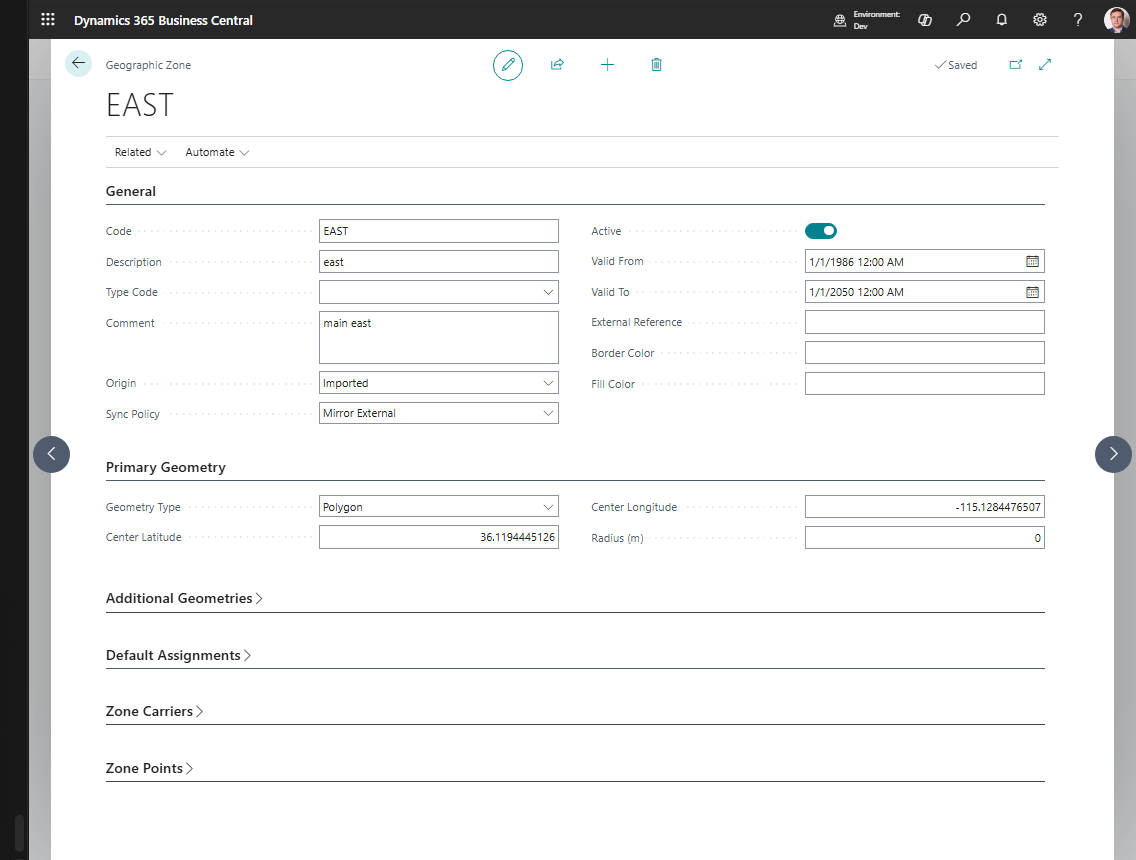
How to work in this page
Use the Zone card when the business needs planning areas or geofence-style grouping.
- Fill Code, Description, and Type Code in General.
- Keep Active turned on only for zones that should be used.
- Choose the main geometry type in Primary Geometry.
- For a circle, fill center latitude, center longitude, and radius.
- For a polygon, maintain points in Zone Points.
- Use Additional Geometries when the zone has multiple areas or holes.
- Set default carrier, vehicle, or driver only when this zone usually uses those resources.
- Use Zone Carriers when more than one carrier serves the zone.
- Choose Show on Map to visually review the geometry.
Two zone layers you should know about
| Layer | Purpose |
|---|---|
| Zone | Your internal Shipper TMS zone used for planning and master data |
| Telematics Zone | Provider snapshot imported from Geotab, Samsara, or Webfleet |
This separation lets you keep your own business structure while still connecting to external geofences.
Use zones for planning and rating
Use standard zones when the business needs simple geographic classification.
Common uses include:
- assigning a default carrier, vehicle, or driver for an area,
- filtering or grouping transport demand,
- supporting route and delivery-region planning,
- using zone-carrier relationships for service coverage,
- reporting demand by region.
For this use, a zone can be useful even before detailed geometry is maintained.
Use zone geometry for maps, routing, and geofence scenarios
Use zone geometry when the system or integration needs a physical area, not just a code.
| Geometry option | Use it when |
|---|---|
| Circle | A depot, yard, or stop can be represented by a center point and radius |
| Polygon | A delivery area, terminal, or city region needs a precise boundary |
| Additional geometries | One business zone has multiple areas or exclusion holes |
Telematics integrations can synchronize provider geofences into telematics zone records. Map or review those records before relying on them for dispatch or execution logic.
Create an internal zone
- Search for Zones.
- Choose New.
- Fill in Code, Description, and Type Code.
- Set Active.
- Choose the geometry style:
- circle,
- polygon.
- Enter the geometry data.
- If needed, set default carrier, vehicle, or driver values for the zone.
Advanced geometry
Use additional geometries when one zone needs:
- multiple separate areas,
- or a hole inside a larger area.
This is useful for complex yards, terminals, or city regions.
Link a zone to a Map Location
- Open the Map Location.
- Make sure the location has coordinates.
- Choose Assign Zone or fill the zone reference directly.
After that, the Map Location can be used with a geographic zone context during planning and integration.
Zones and telematics
If you use Telematics:
- provider zones can be synchronized into Telematics Zones,
- internal zones can be mapped to those external zones,
- published stops can use the mapped geofence reference.
Sync policy
Use the zone Sync Policy to decide how external updates should behave:
- keep the zone fully manual,
- import once and maintain internally,
- mirror the external provider,
- or allow manual override.