Use case: Create your first Transport Order
Scenario
You already have one or more Released Transport Requests and now want to create the actual trip document.
Use this process when the planner knows that the selected requests should travel together.
Before you start
- At least one Transport Request must be Released.
- Requests that should go on this trip should not already be assigned to another Transport Order.
- TMS Setup must have Transport Order Nos. and Default Mode of Transport filled.
- Carriers, vehicles, drivers, and map provider setup should be ready if your process uses them.
Steps
- Open Transport Requests.
- Filter the list to the requests you want to plan.
- Select the released requests.
- Choose Create New Transport Order.
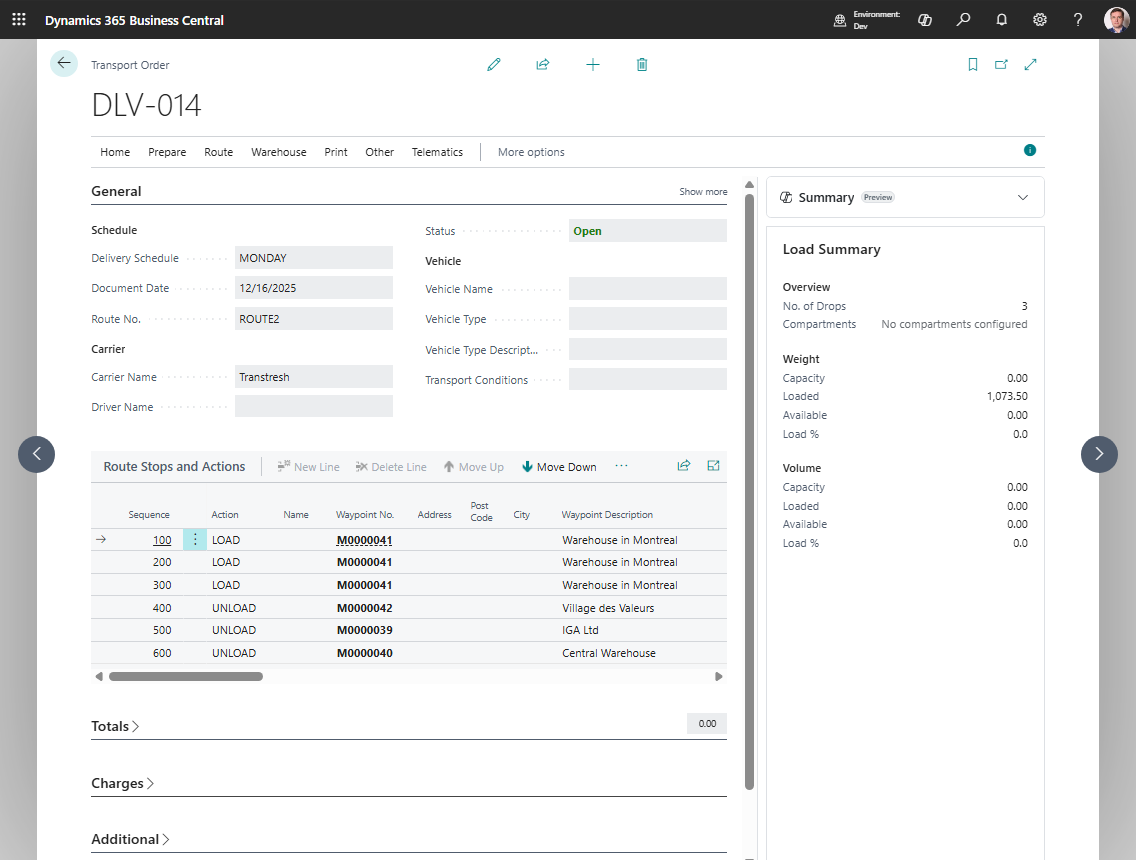
- Open the created order when prompted. The selected requests are added to the new order.
- On the order, review:
- carrier,
- vehicle,
- driver,
- route stops,
- calculated totals.
- Use Get Transport Time & Distance if you want route metrics. The distance and duration fields update when the map provider returns a result.
- Use Carrier Selection if an external carrier should be chosen by rate.
- Review transport charges if carrier selection or manual cost entry created charge lines.
- Release the order when planning is complete. The status changes to Released.
- If warehouse work is required, choose Create Warehouse Documents.
- Print the required transport documents.
- Choose In Progress when the trip starts.
- Post the order after execution and posting prerequisites are complete.
Status path
Use this sequence for the first test:
Transport Request: Released
    |
    v
Transport Order: Open
    |
    v
Transport Order: Released
    |
    v
Transport Order: In Progress
    |
    v
Posted Transport Order
Keep the Transport Order Open while you are changing carrier, vehicle, driver, route, requests, or charges.
Result
A new Transport Order is created and the selected requests are linked to it.
After release, the order is ready for warehouse document creation, printing, telematics dispatch, and execution.
After posting, the live order is moved to Posted Transport Orders.
Troubleshooting
| Problem | What to check |
|---|---|
| Create New Transport Order creates nothing | Select requests with status Released. Open or already assigned requests are skipped. |
| You cannot change the created order | Planning changes require Open status. Choose Reopen if needed. |
| Distance does not calculate | Check map provider setup, route stop map locations, and mode of transport. |
| Warehouse documents are unavailable | Release the Transport Order first. |
| Posting does not complete | Set the order to In Progress, confirm it has lines, and resolve charge-link or source-document posting blockers. |