Use case: Plan a delivery with your own fleet
Goal
Assign released transportation demand to a company vehicle and driver.
When to use it
Use this flow when your own fleet executes the delivery and planners work by truck slot, driver availability, capacity, or compartments.
Before you start
- Vehicles and drivers are created and not blocked.
- Truck Load Time Slot Profile is configured.
- Transport Requests are Released.
- Capacity controls and transportation conditions are configured if enforced.
- If separated cargo is used, compartments and transportation conditions are configured.
Steps
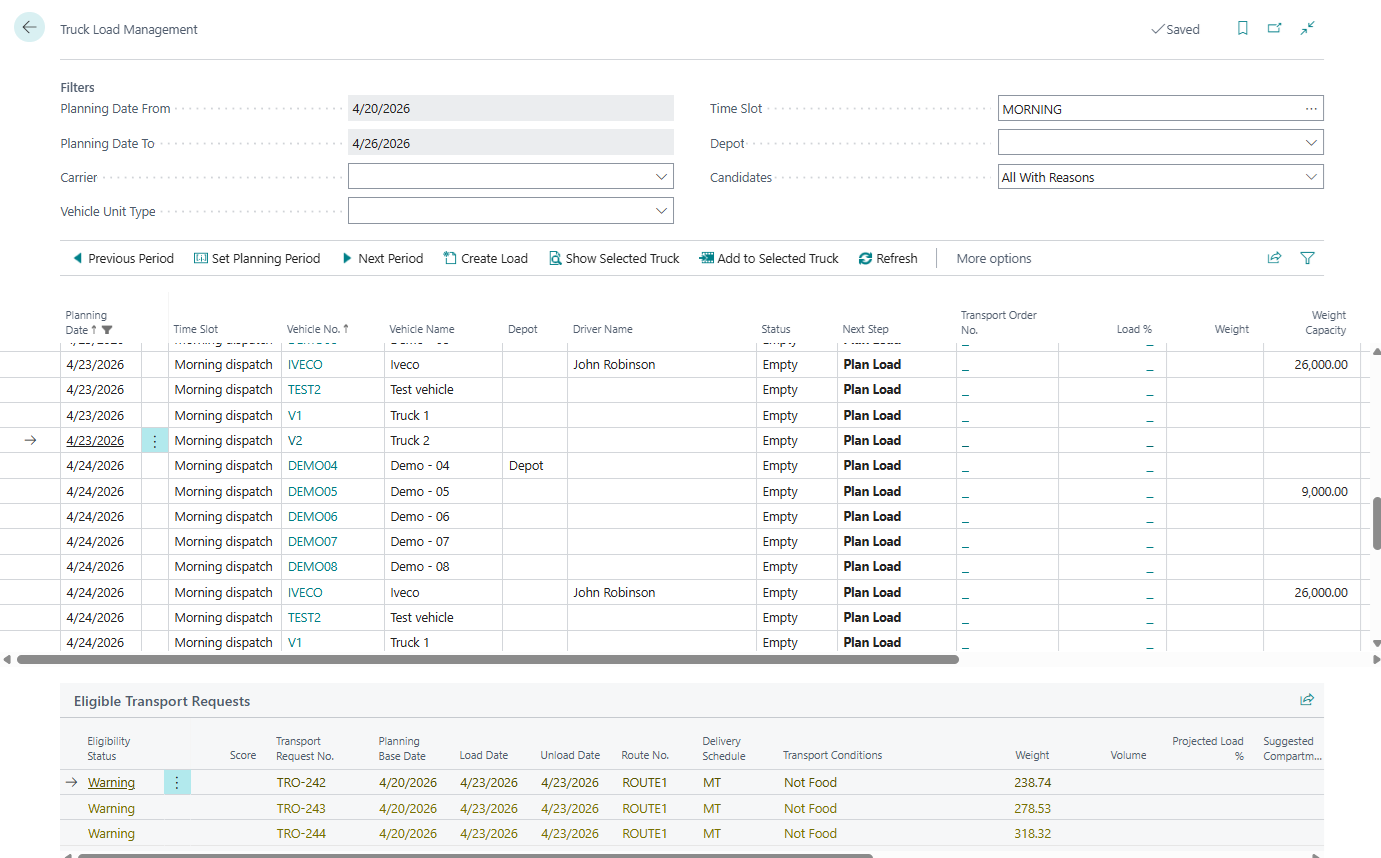
- Open Truck Load Management.
- Set the planning period, carrier, depot, and time slot filters.
- Select the truck slot.
- Choose Create Load if the slot has no Transport Order.
- Review candidate requests.
- If a candidate shows Warning or Blocked, switch to All With Reasons and review the reason before adding it.
- Add eligible requests to the selected truck.
- Open Driver Load Management if driver availability must be checked.
- Resolve conflicts or assign a driver and vehicle.
- Choose Release Load.
Expected result
- The selected truck slot has a linked Transport Order.
- Requests are assigned to the order.
- The load is released after capacity, driver, conflict, and compatibility checks pass.
What to do next
Print documents, publish to telematics if used, and move the Transport Order to In Progress when execution starts.
Common errors
| Problem | What to check |
|---|---|
| No truck slots appear | Time-slot profile, vehicle setup, filters, and blocked vehicle status |
| Candidate is blocked | Candidate mode, capacity, compartment, date, and transportation-condition reason |
| Release Load fails | Missing driver, no requests, overload, conflicts, or non-open Transport Order |