Use case: Compare carriers and assign freight cost
Goal
Select a carrier by rate and allocate the resulting freight cost so posting is not blocked.
When to use it
Use this flow when carrier freight charges must be visible on the Transport Order and assigned to source document lines.
Before you start
- Carrier Selection is enabled.
- Carrier Rates and Carrier Rate Type Mapping are configured.
- The Transport Order is Open and has route stops.
- Source documents are ready for item-charge assignment if charges must flow back to sales or purchase documents.
Steps
- Open the Transport Order.
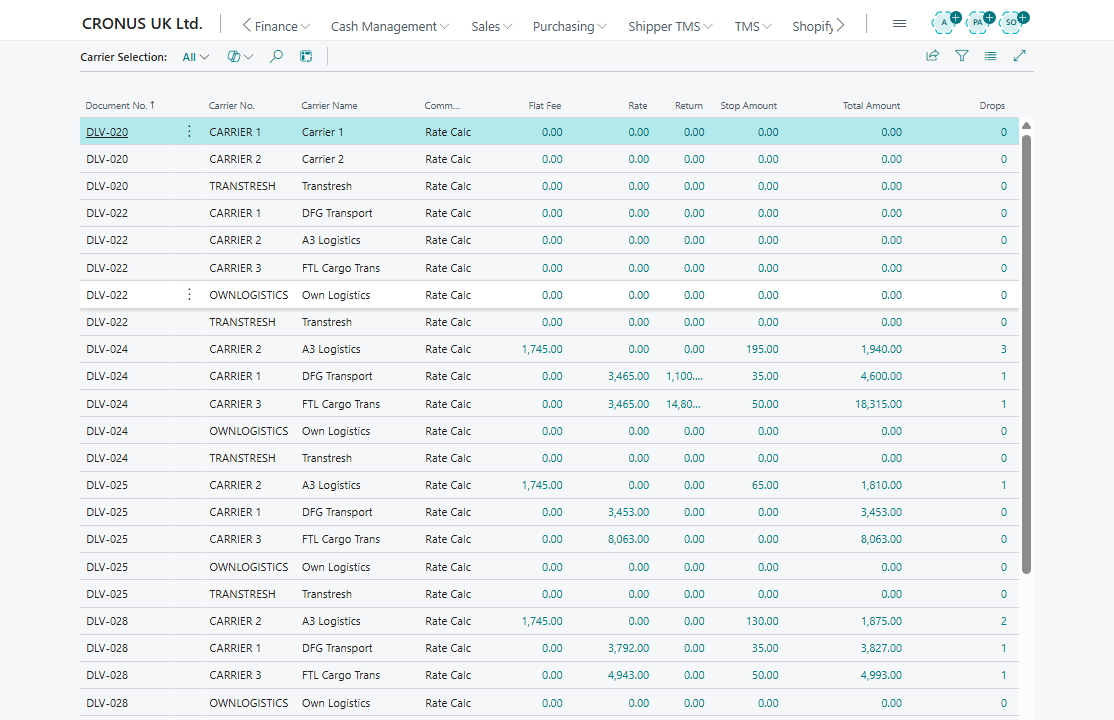
- Choose Carrier Selection.
- Review the carrier rows and cost breakdown.
- Apply the selected carrier.
- Confirm that the selected carrier is written to the Transport Order.
- Go to the Charges section.
- Select the created charge line.
- Choose Show Assignment.
- Suggest allocation by distance, weight, volume, footage, logistic units, or equally.
- Review and adjust amounts.
- Choose Apply when source document item-charge assignment must be updated.
Expected result
- The carrier is assigned to the order.
- Freight charge lines show assigned amounts.
- Required source document item-charge assignments are updated.
What to do next
Release the order or continue planning route, warehouse, and execution details.
Common errors
| Problem | What to check |
|---|---|
| Carrier rate does not match | Carrier Selection uses country/region code, county, city, and post code. Region Code is not used by the current matching logic. |
| Auto charge line is missing | Auto Create Charge Line, carrier Source Type = Vendor, carrier Source No., and Carrier Rate Type Mapping |
| Assigned amount is not complete | Reopen Show Assignment and assign remaining amount |
| Posting is blocked | Source charge lines, item-charge assignment, and unposted sales or purchase documents |